The Difference Between Editing and Processing
Most photographers open Lightroom and start dragging sliders. They push the highlights down, lift the shadows up, crank the clarity, and call it done. The result looks “edited” — but it doesn’t look processed.
The distinction matters. Editing is reactive: you see a problem, you fix it. Processing is systematic: you follow a deliberate sequence that builds a final image the way a darkroom printer builds a print — from the foundation up, each step depending on the one before it.
Professional landscape photographers who process thousands of images per year don’t wing it. They follow a workflow. Not because they lack creativity, but because a consistent process frees creative energy for the decisions that actually matter — the ones no preset can make for you.
This tutorial covers the complete workflow I use for every landscape image, from the moment the card hits the reader to the final export. It is not the only valid approach, but it is a proven one. Bryan Peterson writes in Understanding Exposure that technique must become unconscious before vision can take over. The same principle applies to post-processing.
Setting Up Lightroom for Serious Work
One Catalog, No Exceptions
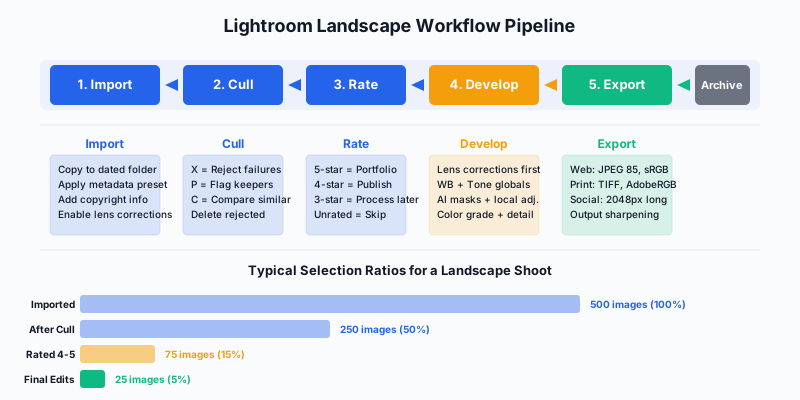
The single-catalog approach eliminates the most common organizational disaster in photography: losing track of where images live. Use one master catalog for your entire library. Organize within it using a date-based folder structure.
Photos/
├── 2026/
│   ├── 2026-01-Iceland/
│   ├── 2026-03-Patagonia/
│   └── 2026-06-Norway/
├── 2025/
└── Archive/
Collections handle everything that folders cannot — project-based grouping, client deliverables, portfolio selects. Smart collections automate the sorting based on star ratings, color labels, or keywords.
Import Presets That Save Hours
Create an import preset that applies automatically every time you bring images in:
- Copyright metadata: Your name, contact, and usage terms embedded in every file
- Lens corrections enabled: Removes distortion and vignette from the start
- Develop defaults: If you always shoot with a specific camera, set baseline adjustments
- File handling: Copy to dated folder, build standard previews, don’t import suspected duplicates
This front-loading pays for itself hundreds of times over. Every minute spent configuring import presets saves hours across a career.
The Three-Pass Culling System
A week-long landscape trip generates 2,000 to 5,000 images. Processing all of them is neither possible nor desirable. The culling system reduces that number to the 50-100 images worth your creative attention.
First Pass: Reject Failures
Keyboard: X to reject, right arrow to advance. Move fast. Don’t evaluate composition or artistic merit — only reject technical failures: missed focus, severe exposure problems, accidental shutter fires. This pass should take 10-15 minutes per 1,000 images.
Second Pass: Flag Candidates
P to flag as a pick, U to unflag. Now you’re making artistic judgments. Flag the best frame from each burst, the strongest composition from each location, the image with the best light. Use C for compare mode when you have similar frames.
Third Pass: Star Ratings
Only flagged images get rated:
| Rating |
Meaning |
Typical Volume |
| 5 stars |
Portfolio-worthy, best of trip |
5-10 images |
| 4 stars |
Strong, publish-ready |
20-40 images |
| 3 stars |
Good, may process later |
30-50 images |
| Unrated |
Archived, not processed |
Everything else |
This funnel means you spend your processing time on images that deserve it. The 5-star images get your best work. The 3-stars are there if you need them later.
The Develop Panel Sequence: Why Order Matters
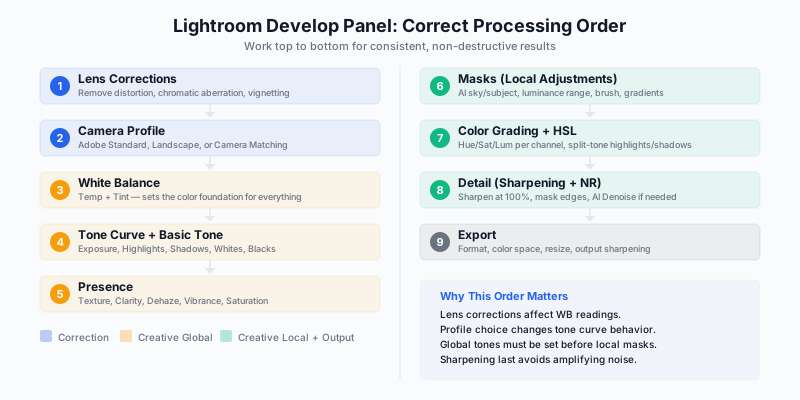
The single most common mistake in Lightroom processing is working the panels in the wrong order. Lightroom’s develop module is not a random collection of sliders — it is a pipeline. Each adjustment affects everything downstream.
Step 1: Lens Corrections
Always start here. Enable Remove Chromatic Aberration and Enable Profile Corrections. Lightroom auto-detects most lenses. This removes barrel distortion, corrects vignetting, and eliminates color fringing at high-contrast edges.
Why first? Because lens distortion affects where pixels sit in the frame, which changes how every subsequent adjustment reads the image. Correct the optics before you correct the exposure.
Step 2: Camera Profile
The profile determines the baseline interpretation of your RAW data. Your options:
- Adobe Standard: Neutral, low-contrast starting point
- Adobe Landscape: Higher saturation and contrast, good for most outdoor scenes
- Camera Matching: Emulates the JPEG your camera would have produced
For landscape work, Adobe Landscape gives you a head start without boxing you in. Switch to Adobe Standard if the scene demands restraint.
Step 3: White Balance
Set white balance before touching tone. Color temperature affects perceived brightness, so if you adjust exposure first and then shift white balance, you’ll end up re-adjusting exposure.
Methods for setting WB:
- Eyedropper on a neutral gray area in the scene (rock, road, overcast sky)
- Manual temperature: Daylight ~5500K, golden hour 5000-6000K, blue hour 6500-8000K, shade 7000-8000K
Trust your calibrated monitor over your camera’s LCD. If you haven’t calibrated your monitor, that is the single highest-impact upgrade you can make to your processing.
Step 4: Global Tone Adjustments
Now work the Basic panel sliders in this sequence:
- Exposure: Set overall brightness. Normal adjustments fall within -1.5 to +1.5 stops.
- Highlights: Pull back blown sky. -60 to -100 is typical for sunrise/sunset.
- Shadows: Lift dark foreground. +30 to +70 for most landscapes.
- Whites: Set the white point. Hold Alt/Option while dragging — stop when clipping first appears.
- Blacks: Set the black point. Same Alt/Option technique. A small amount of pure black anchors the image.
The Tone Curve offers finer control after the basics are set. An S-curve adds contrast that feels more natural than the Contrast slider. Pull the shadows point down slightly and push the highlights point up.
Step 5: Presence
These sliders affect the perceived character of the image:
| Slider |
Effect |
Landscape Range |
Watch Out For |
| Texture |
Surface detail in medium textures |
+10 to +30 |
Avoid on sky |
| Clarity |
Midtone contrast, “punch” |
+10 to +20 |
Over-processing look |
| Dehaze |
Atmospheric contrast removal |
+5 to +15 |
Artifacts above +25 |
| Vibrance |
Saturation of muted colors |
+10 to +25 |
Oversaturated greens |
| Saturation |
Equal saturation boost |
-5 to +10 |
Nuclear sunset syndrome |
Dehaze deserves special attention. At moderate values (+5 to +15), it recovers atmosphere naturally. Beyond +20, you enter territory where images look synthetic. If a scene was hazy, a small dehaze adjustment reveals what was there. A large one invents what wasn’t.
Mastering Lightroom’s AI Masks
Lightroom’s masking engine transformed local adjustments from tedious brush work into intelligent, adaptive selections. The key is learning when to use each mask type — and when to combine them.
Sky Masking
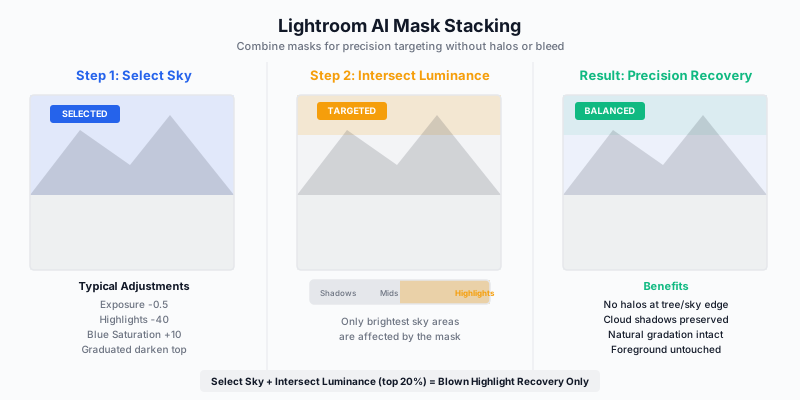
The Select Sky button provides a one-click mask that is remarkably accurate, even with complex tree lines and mountain ridges. Common sky adjustments:
- Reduce exposure -0.3 to -0.7 to deepen sky
- Pull highlights -30 to -60 for cloud detail
- Add a touch of blue saturation via HSL
- Apply a subtle graduated darkening toward the top
Refinement: Subtract from the mask with a brush where trees or structures were incorrectly included. Adjust the feather slider to control edge hardness — softer feathering (higher values) prevents the “cut-out” look.
Subject Masking
Select Subject identifies foreground elements. Use it to:
- Lift shadows in a dark foreground without affecting the sky
- Add texture and clarity to rocky terrain
- Independently warm or cool foreground elements
Luminosity Masks
Select by Luminance Range targets specific brightness values. This is the landscape photographer’s precision tool:
- Protect highlights while lifting shadows globally
- Target midtones for clarity adjustments without affecting extremes
- Apply dehaze only to the brightest parts of a hazy sky
Combining Masks for Precision
The real power emerges when you stack masks:
- Select Sky to isolate the sky
- Intersect with a Luminance Range targeting only highlights
- Result: a mask that affects only the brightest parts of the sky — the blown-out areas — without touching cloud shadows or mid-sky tones
This kind of targeted correction eliminates halos, preserves natural gradation, and produces results that look like they came from a much more expensive camera.
Color Grading Landscape Images
The Natural Palette
Most landscape photographers aim for enhanced reality — colors that feel vivid but not artificial. The HSL panel is where this happens:
- Orange: +5 to +10 saturation warms sunlit rock and earth
- Blue: +10 saturation, -5 to -10 luminance deepens sky without turning it purple
- Green: -5 to -10 saturation tames oversaturated foliage (digital cameras exaggerate green)
- Yellow: -5 luminance enriches autumn tones
Split Toning for Mood
The Color Grading panel applies different color casts to highlights and shadows:
- Warm highlights + cool shadows: Classic landscape look. Warm shift (+5 toward orange) in highlights, cool shift (+5 toward blue) in shadows. Creates natural separation.
- Unified cool tones: Blue hour and moody weather. Cool both highlights and shadows, with shadows slightly stronger.
The Color Variance Slider
Introduced in Lightroom Classic 15, Color Variance adds subtle variation within similar hues — mimicking how film renders color. Digital sensors capture each hue uniformly, which can look sterile. Color Variance at +10 to +20 makes foliage look more organic, skies more alive, and water more dynamic.
This subtle tool separates images that look “digital” from those that feel photographic.
Sharpening and Noise Reduction
Sharpening at 100% Zoom — Always
Never evaluate sharpening at any zoom level other than 100%. What looks sharp at fit-to-screen may be oversharpened or undersharpened at actual pixels.
Landscape Sharpening Settings:
| Parameter |
Value |
Why |
| Amount |
80-100 |
Full sharpening for detail-rich scenes |
| Radius |
1.0-1.2 |
Appropriate for high-resolution sensors |
| Detail |
25-40 |
Higher values sharpen fine texture |
| Masking |
60-80 |
Restricts sharpening to edges only |
The Masking slider is critical. Hold Alt/Option while dragging to see the mask preview. White areas get sharpened; black areas don’t. At 60-80, you sharpen rock edges and tree detail without adding noise to smooth skies.
Noise Reduction by ISO
| ISO Range |
Luminance NR |
Approach |
| 100-400 |
0-10 |
Minimal, if any |
| 400-800 |
10-20 |
Light touch |
| 800-1600 |
20-30 |
Standard NR |
| 1600+ |
30-50 or AI Denoise |
Heavier intervention |
AI Denoise (Enhance > Denoise) creates a new DNG file with dramatically superior noise reduction. For any image shot above ISO 1600 that you plan to print or publish, AI Denoise at 40-60% is worth the processing time and storage cost.
Export Settings That Match Your Output
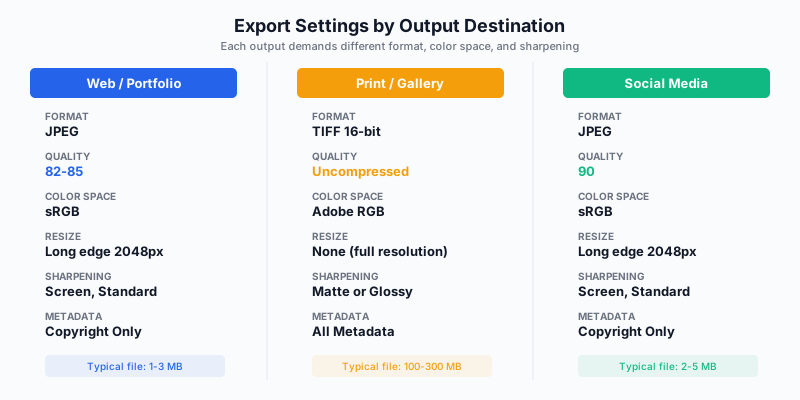
Web Export
| Setting |
Value |
| Format |
JPEG |
| Quality |
82-85 |
| Color Space |
sRGB |
| Resize |
Long edge 2048px |
| Output Sharpening |
Screen, Standard |
| Metadata |
Copyright Only |
Print Export
| Setting |
Value |
| Format |
TIFF 16-bit or JPEG 100% |
| Color Space |
Adobe RGB or ProPhoto RGB |
| Resolution |
300 ppi |
| Resize |
None (or final print size) |
| Output Sharpening |
Matte or Glossy, Standard |
| Metadata |
All |
Instagram compresses heavily. Export at 2048px long edge, JPEG quality 90, sRGB. The higher quality compensates for platform re-compression.
Batch Processing for Consistency
Sync Settings Across a Series
Images from the same shooting location often share lighting conditions. Process one representative image, select all similar frames, and use Sync Settings (Ctrl/Cmd+Shift+S). Choose which adjustments to sync — usually everything except crop and local adjustments.
Build a Preset Library
Presets are not lazy — they’re efficient. Build presets for recurring starting points:
- “Landscape Base”: Lens corrections, standard sharpening, camera profile
- “Golden Hour Warm”: Color grading for sunrise/sunset warmth
- “Blue Hour Cool”: Color grading for twilight and pre-dawn
- “Moody Overcast”: Desaturated highlights, lifted blacks, muted tones
Presets give you a 60% starting point. The remaining 40% is where your eye and judgment take over.
Exercises
Exercise 1: Panel Order Discipline
Process a single landscape image following the exact panel order described above. Start with lens corrections, end with sharpening. Resist the urge to jump ahead to color grading before tone is set. Compare the result to your usual approach.
Exercise 2: Mask Stacking
Take a sunrise landscape with a bright sky and dark foreground. Create three masks: Select Sky (darken and recover highlights), Select Subject (lift shadows and add texture), and a Luminance Range mask targeting only the brightest 20% of the sky. Observe how stacking produces cleaner results than global adjustments alone.
Exercise 3: Cull 500 Images in 20 Minutes
Load a recent shoot of 500+ images. Set a timer for 20 minutes and complete all three culling passes. The constraint forces fast decision-making — a skill that improves with practice and prevents the paralysis of over-evaluation.
Exercise 4: One Image, Two Outputs
Process a single landscape for both web and large print. Export both versions and compare them side by side. Notice how output sharpening, color space, and resolution affect the final appearance. Understanding output-specific processing is the difference between images that look good on Instagram and images that hold up at 24x36 inches.
Building Your Processing Identity
A workflow is not a recipe — it is a foundation. The panel order, the culling system, the export presets — these are the bones. What you build on top of them is your processing identity: the color palette you gravitate toward, the contrast curve you prefer, the balance you strike between natural and dramatic.
Michael Freeman writes in The Photographer’s Eye that composition decisions should become intuitive. The same applies to processing. When the technical sequence is automatic, you stop thinking about how to edit and start thinking about what this image wants to become.
That shift — from technique to vision — is where consistent work becomes genuinely personal work. The workflow gets you there.