The Landscape That Would Not Fit in a Single Frame
You stand at a viewpoint where the scene extends 180 degrees from left to right. Mountain ranges fold into each other, a river winds through the valley below, and the sky stretches from one horizon to the other in a continuous sweep of light and cloud. Your 16-35mm lens captures a fraction of it. Even at 16mm, the image feels constrained, a window into a scene rather than the immersive experience of standing there.
You could shoot wider. A 12mm or 14mm lens would capture more of the field of view. But ultra-wide lenses introduce barrel distortion, stretch the edges of the frame, and reduce the apparent size of distant elements. The panorama you see with your eyes does not look like the barrel-distorted ultra-wide-angle image on your screen.
The alternative is to build the image from multiple frames. Shoot a series of overlapping photographs, stitch them together in software, and produce a final image that captures the full field of view at a resolution that dwarfs any single frame. A six-frame panorama from a 50-megapixel camera produces a 150-250 megapixel composite, enough to print at eight feet wide with perfect detail.
This is not a compromise technique. It is a superior technique, one that extracts more resolution, more dynamic range, and more spatial fidelity from your equipment than any single frame can deliver.
Panoramic Capture: The Technical Foundation
A panoramic photograph is only as good as the capture technique. Software can fix many stitching errors, but it cannot fix poor overlap, inconsistent exposure, or parallax artifacts from an incorrect rotation point.
The Nodal Point: Why Rotation Matters
When you rotate a camera on a standard tripod head, it pivots around the camera’s mounting point, which is not the same as the lens’s optical center (the nodal point or, more precisely, the entrance pupil). This discrepancy causes parallax error: near objects shift relative to far objects between frames, creating ghost artifacts and stitching failures.
For distant landscapes with no close foreground, parallax is negligible. You can rotate on a standard ball head and stitch successfully. But when your scene includes foreground elements within a few meters of the camera, parallax becomes visible and destructive.
The solution: A panoramic head (Really Right Stuff PG-02 LR, Nodal Ninja, or Benro PC-1) allows you to position the camera so it rotates around the lens’s nodal point. Finding this point requires a simple calibration: set up a near and far reference object, rotate the camera, and adjust the camera’s fore-aft position on the rail until the near and far objects do not shift relative to each other.
Portrait Orientation: The Non-Obvious Choice
Shoot panorama frames in portrait (vertical) orientation, not landscape. This counterintuitive choice provides three advantages:
- More vertical coverage: Portrait frames capture more sky and foreground in each frame, giving you a taller final panorama with less top-and-bottom cropping after stitching.
- More frames equals more resolution: A panoramic sweep in portrait orientation requires more frames to cover the same horizontal field of view, and each additional frame adds resolution to the final composite.
- Better lens performance: The center of the lens is optically superior to the edges. In portrait orientation, you use more of the lens center across the width of your panorama.
Overlap Strategy
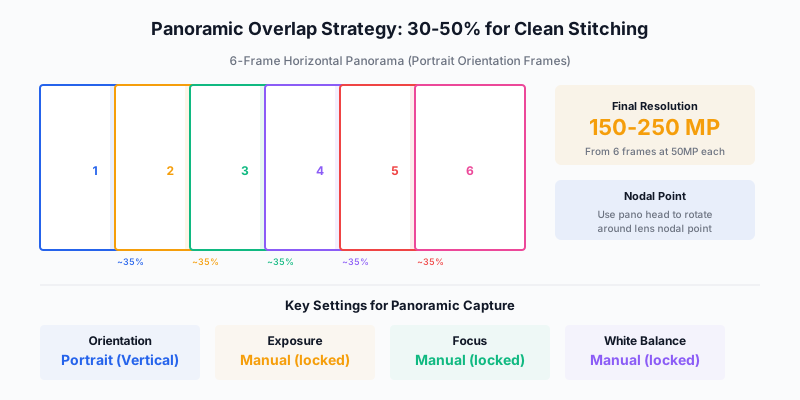
The overlap between adjacent frames must be sufficient for stitching software to identify and align matching features.
| Overlap Amount |
Recommendation |
When to Use |
| 25-30% |
Minimum viable |
Distant scenes with strong texture |
| 30-40% |
Standard |
Most landscape panoramas |
| 40-50% |
Conservative |
Scenes with moving elements, water, clouds |
| 50%+ |
Excessive |
Usually unnecessary, slows capture |
For most landscape work, 30-40% overlap provides reliable stitching with efficient capture speed. Increase to 40-50% when the scene contains moving clouds, water, or other elements that change between frames.
Locking Everything
The single most common panoramic failure is inconsistent settings between frames. The stitching software aligns geometry, but it cannot fix exposure shifts, white balance changes, or focus variations between adjacent frames.
Lock all of these before starting the sweep:
- Exposure: Manual mode. Set exposure for the brightest part of the scene and hold it constant across all frames. Slight underexposure of darker regions is preferable to clipped highlights in any frame.
- Focus: Manual focus. Focus at the hyperfocal distance for your aperture and do not touch the focus ring during the sweep.
- White balance: Manual (set a specific Kelvin value, not Auto). Auto WB will shift between frames as the content changes.
- Aperture: f/8 to f/11 for maximum sharpness across the frame. Do not vary aperture between frames.
The Sweep Sequence
- Compose your panorama mentally. Identify the leftmost and rightmost extents.
- Start from the left (or right, consistently, your choice) and shoot the first frame.
- Rotate the camera to overlap approximately 35% with the previous frame.
- Shoot. Rotate. Repeat until you have covered the full field.
- Shoot one extra frame beyond each edge as insurance.
- Complete the entire sweep within 60 seconds to minimize light and cloud changes.

Photo: Amin Ghadersohi
Multi-Row Panoramas: The Resolution Monster
A single-row panorama captures a wide horizontal field of view. A multi-row panorama captures width AND height, producing images of extreme resolution.
The technique: shoot a horizontal sweep across the top row, then tilt down and shoot a second sweep, then tilt down again for a third row. The result is a grid of frames that stitches into an image with resolution in the hundreds of megapixels.
When Multi-Row Makes Sense
- Gallery-scale prints: A three-row, eight-column panorama from a 50MP camera produces approximately 600-800 megapixels, enough for a 12-foot print at full detail.
- Ultra-wide with tall scenes: When you need both a 120+ degree horizontal field and significant vertical coverage (tall mountains, waterfalls, cityscapes).
- Pixel-shift alternative: Instead of relying on camera pixel-shift modes (which require absolute stillness), multi-row panoramas achieve extreme resolution through simple frame accumulation.
Multi-Row Capture Order
Capture top-to-bottom, left-to-right (or the reverse). The key constraint: complete all rows as quickly as possible. Changing light between the first and last row creates color and brightness inconsistencies that even sophisticated stitching software struggles to resolve.
HDR Bracketing: Capturing the Full Dynamic Range
High Dynamic Range (HDR) photography captures the complete luminance range of a scene by combining multiple exposures taken at different brightness levels. Done well, HDR produces natural-looking images with detail in both shadows and highlights that no single exposure can achieve. Done badly, HDR produces the haloed, oversaturated, tone-mapped images that give the technique its bad reputation.
The distinction is this: HDR is a capture technique, not a processing style. Capturing multiple exposures to preserve highlight and shadow detail is sound photographic practice. Applying aggressive tone mapping that makes the result look radioactive is a processing choice, and a bad one.
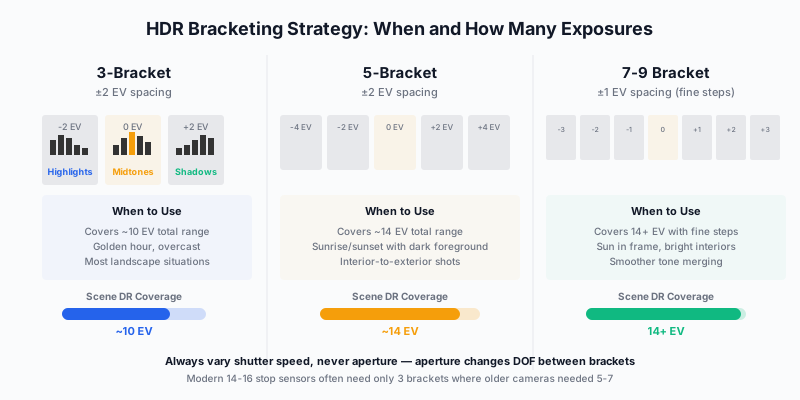
When HDR Is Necessary
Modern cameras with 14-16 stops of dynamic range have dramatically reduced the need for HDR. A Sony A1 II or Nikon Z8 shooting 14-bit RAW can recover 5+ stops of shadow detail and 2+ stops of highlight detail from a single exposure. Many scenes that required 3-bracket HDR five years ago can now be captured in one frame.
HDR remains necessary when:
- The scene exceeds 14-15 EV of dynamic range: Sunrise/sunset with deep foreground shadow, bright sky with a dark interior visible through a window, any scene where the brightest and darkest elements span more than your sensor can capture.
- You need maximum shadow quality: Even when a single exposure technically captures the shadows, pushing them 4-5 stops introduces noise. A dedicated shadow exposure at +2 or +4 EV captures those shadows cleanly.
- You are printing large: The cleaner data from HDR bracketing produces smoother tonal transitions in large prints, even when a single-exposure file appears adequate on screen.
Bracket Spacing and Count
| Bracket Set |
Total EV Coverage |
Typical Use |
| 3 frames at ±2 EV |
~10 EV |
Most golden hour landscapes |
| 5 frames at ±2 EV |
~14 EV |
Sunrise/sunset with dark foreground |
| 7 frames at ±1 EV |
14+ EV (fine steps) |
Interior/exterior, sun in frame |
| 3 frames at ±1 EV |
~8 EV |
Subtle range extension |
Always vary shutter speed, never aperture. Changing aperture between brackets shifts the depth of field, creating alignment problems when merging. Set your aperture (typically f/8 to f/11), lock it, and bracket by varying shutter speed only.
AEB (Auto Exposure Bracketing)
Most cameras have a built-in AEB function that fires 3, 5, or more bracketed exposures automatically. Set AEB to your desired bracket count and spacing, set the drive mode to continuous, and hold the shutter. The camera fires the entire bracket set in rapid succession, minimizing the time between frames and reducing the risk of subject movement between exposures.
Handheld HDR
Modern IBIS and high shutter speeds make handheld HDR viable in many conditions. At 1/250s for the base exposure, 1/1000s for the dark exposure, and 1/60s for the bright exposure, all three frames are likely sharp handheld with IBIS engaged. Lightroom’s HDR merge includes alignment that compensates for the slight shift between handheld frames.
For critical work and tripod-based shooting, use a cable release or 2-second timer to eliminate camera shake.

Photo: Amin Ghadersohi
The HDR Panorama: Maximum Data Capture
The HDR panorama combines both techniques: at each panoramic position, you shoot a bracketed set (typically 3 or 5 exposures), then rotate to the next position and bracket again. The result is a grid of exposures that captures both the full spatial field and the full dynamic range.
A six-position panorama with 3 brackets each produces 18 frames. A multi-row HDR panorama (3 rows, 8 columns, 3 brackets) produces 72 frames from a single scene.
HDR Panorama Workflow
- Set up: Panoramic head, manual exposure, manual focus, manual white balance.
- Meter the scene: Identify the brightest and darkest areas. Set your bracket range to cover both.
- Sweep: At each position, fire the full bracket set before rotating. Complete the sweep as quickly as possible.
- In software: Merge brackets to HDR first (per position), then stitch the HDR results into the panorama. Lightroom can do this in one step with “Photo Merge > HDR Panorama.”
Lightroom Photo Merge
Lightroom’s built-in panorama merge handles the majority of panoramic stitching needs. It is non-destructive, produces a DNG file that retains full RAW editing latitude, and integrates seamlessly into a Lightroom workflow.
Strengths: Simple, produces RAW DNG output, handles HDR panoramas natively.
Limitations: Limited projection control, no manual control point editing, struggles with complex multi-row panoramas and moving subjects.
PTGui Pro
PTGui is the professional standard for panoramic stitching. It provides complete control over every aspect of the stitch: projection type, control point placement, exposure blending, masking for moving objects, and multi-row alignment.
When to use PTGui instead of Lightroom:
- Multi-row panoramas (3+ rows)
- Panoramas exceeding 120 degrees
- Scenes with moving elements that need masking
- When you need specific projection types (equirectangular, Mercator, Vedutismo)
- 360-degree panoramas
- Maximum quality output for gallery prints
Projection Types
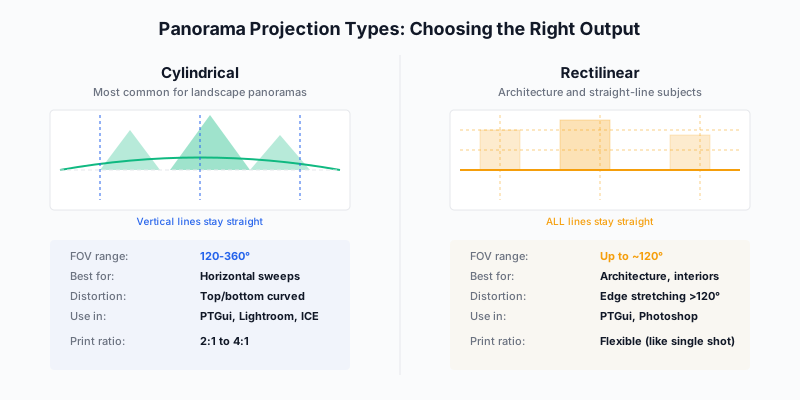
Cylindrical: The default for horizontal panoramas. Vertical lines stay straight, but the horizon curves slightly at wide angles. Best for landscape sweeps.
Rectilinear: All straight lines in the scene remain straight in the output. Best for architecture and urban scenes. Limited to approximately 120 degrees before edge stretching becomes extreme.
Spherical (Equirectangular): Maps the entire 360-degree sphere onto a flat rectangle. Used for VR panoramas and 360-degree images. Creates extreme distortion when viewed flat but appears natural in VR viewers.
Mercator: A compromise between cylindrical and rectilinear that handles wide angles well with less horizon curvature than cylindrical projection.
HDR Merging: Natural Results
The goal of HDR merging is an image that looks like what your eyes saw, not an image that looks “HDR.” The human eye adapts locally: it can see detail in a dark cave entrance while simultaneously reading a bright sky. HDR merging replicates this adaptive vision.
Lightroom HDR Merge
- Select all bracket frames in the Library.
- Photo > Photo Merge > HDR (or Ctrl+H).
- Auto Align: Enable for handheld brackets.
- Deghost Amount: None, Low, Medium, or High. Use the minimum that eliminates ghost artifacts from moving elements. High deghost can introduce artifacts of its own.
- Click Merge. The result is a 32-bit DNG file with enormous editing latitude.
Processing the HDR Merge
The merged DNG file looks flat and low-contrast by default. This is correct. The file contains a massive dynamic range, and the preview is compressed to fit within the display’s limited range.
Process it like any other RAW file:
- Set white and black points using the histogram.
- Adjust shadows and highlights to reveal detail across the full range.
- Apply local adjustments (masks) to target specific tonal regions.
- Avoid over-processing. If the shadows are brighter than the midtones, or if every surface in the image has the same luminance, you have gone too far.
The Natural HDR Test
Show your processed HDR image to someone who was not there. If they say “that looks HDR,” you have over-processed it. If they say “that looks like a beautiful photograph,” you have succeeded.
The hallmarks of over-processed HDR:
- Halos around high-contrast edges (dark lines where sky meets mountain)
- Flat, uniform luminance across the entire image (no sense of light direction)
- Oversaturated colors, especially in midtones
- A surreal, painted quality that reads as artificial
Luminosity Masking: The Professional Alternative to Tone Mapping
Tone mapping (the process most “HDR software” uses) compresses the dynamic range of the merged file into a displayable range using algorithms that often produce artifacts. Luminosity masking achieves the same goal through targeted, manual adjustments that you control entirely.
In Lightroom, luminosity masking is built into the masking system:
- Create a mask targeting only the highlights (Luminance Range mask, bright end).
- Reduce exposure and recover detail in those highlights specifically.
- Create a second mask targeting only the shadows.
- Lift exposure and reveal detail in those shadows specifically.
- Leave the midtones largely untouched.
The result is an image with full highlight and shadow detail that retains the natural luminance hierarchy of the scene. Lights are still lighter than darks. The sense of directional light is preserved. No halos. No surreal tone mapping artifacts.

Photo: Amin Ghadersohi
Panoramic Printing Considerations
Panoramic images present unique printing challenges due to their extreme aspect ratios.
Aspect Ratio and Print Size
| Pano Type |
Typical Ratio |
Print Size at 300 DPI (from 200MP) |
| Wide landscape |
2:1 |
56” x 28” |
| Ultra-wide |
3:1 |
72” x 24” |
| Extended sweep |
4:1 |
80” x 20” |
| 180-degree |
5:1+ |
100” x 20” |
Mounting Panoramic Prints
Traditional framing of panoramic prints is expensive due to the custom frame sizes required. Alternative mounting options:
- Face-mount acrylic: The panoramic format suits face-mount presentation perfectly. The frameless edge and acrylic depth create a clean, modern presentation. Expect to pay $400-1,200 for a 60-inch panoramic face-mount from a quality lab.
- Float mount on aluminum: Lighter and less expensive than acrylic. Works well for panoramic prints that will hang in residential settings.
- Canvas wrap: The least expensive option for large panoramic prints. Wrapping around a deep-profile stretcher bar (2-inch depth) gives the print a gallery presence.
Exercises: Building Multi-Frame Mastery
Exercise 1: The Nodal Point Calibration
Set up a close foreground object (a stick or pencil at 1 meter) and a distant object (a building or tree). Mount your camera on a panoramic rail. Rotate the camera and observe the parallax shift between near and far objects. Adjust the rail until the shift disappears. Record the nodal point position for your most-used lens. This calibration takes 10 minutes and is valid as long as you use the same lens.
Exercise 2: The Three-Projection Comparison
Shoot a 120-degree panorama of a scene containing both natural elements and straight-line structures (a building, a bridge, a fence). Stitch it three times using cylindrical, rectilinear, and Mercator projections. Compare how each projection handles the straight lines and the natural curvature. This teaches you when each projection serves the subject best.
Exercise 3: The Bracket Necessity Test
Shoot a high-contrast scene (sunset with dark foreground) both as a single RAW exposure and as a 3-bracket HDR set. Process both to your best ability. Print both at 16x20 inches and compare shadow quality, highlight detail, and tonal smoothness. This test, specific to your camera body, tells you exactly when HDR is necessary versus when single-frame capture suffices.
Exercise 4: The Speed Sweep
Practice completing a six-frame panoramic sweep in under 30 seconds. Time yourself. Eliminate wasted motion: rotate, shoot, rotate, shoot. The faster your sweep, the less likely clouds, water, or light will change between frames. Practice until the process is automatic.
Exercise 5: The Gallery Panorama
Shoot a multi-row HDR panorama (minimum 2 rows, 6 columns, 3 brackets = 36 frames). Process through Lightroom or PTGui. Print at a minimum of 36 inches wide. Evaluate the result at close viewing distance. This exercise pushes every aspect of the technique and reveals whether your process produces gallery-quality output.
Conclusion
The single frame is a convention, not a law. The landscape does not care about your sensor’s aspect ratio or your lens’s field of view. When the scene demands more than one frame can deliver, more resolution, more dynamic range, more spatial coverage, the tools exist to build images that transcend the limitations of any single capture.
Panoramic and HDR techniques are not shortcuts or crutches. They are precision tools that, applied with discipline and restraint, produce images of a quality that no single frame can match. The 200-megapixel panorama printed at six feet wide with detail visible from inches away. The HDR merge that holds both the blazing sunset and the shadowed foreground with the naturalness of human vision.
Master the capture technique first: nodal point, overlap, locked settings, speed. Master the processing second: projection choice, blend quality, tonal restraint. The photographers who combine these skills with strong composition and meaningful light produce images that are not just technically impressive but genuinely moving at a scale that commands a room.