Your Drone Captures Data, Not Photographs
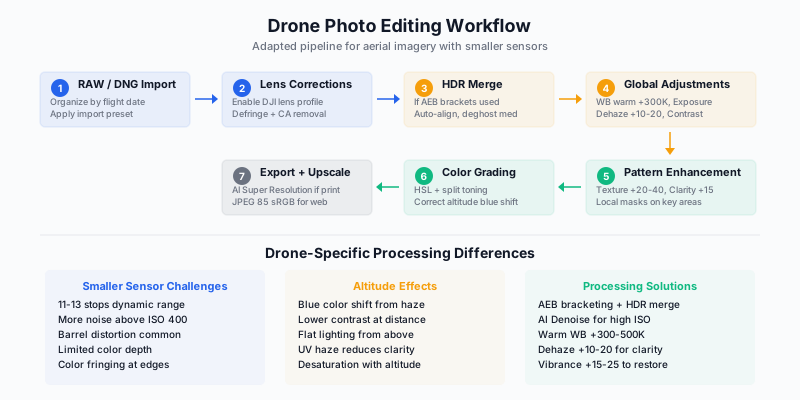
A RAW file from a drone is not a photograph. It is a data set — a record of light values captured by a sensor that is, by any full-frame standard, undersized and overworked. The gap between what your drone sensor records and what the scene actually looked like is wider than with any other camera you own.
That gap is not a flaw. It is an opportunity. But only if you understand the specific limitations of drone sensors and process accordingly. The techniques that work for a Sony A7R V do not directly translate to a DJI Mavic 4 Pro or Air 3S. The physics are different, the optics are different, and the atmospheric conditions at altitude introduce problems that ground-based photography never encounters.
That said, the latest generation of drone sensors has narrowed this gap considerably. The Mavic 4 Pro’s 14-bit RAW files and 16-stop dynamic range produce data that would have been competitive with dedicated cameras just a few years ago. Processing these files requires a different approach than the 12-bit files from earlier drones — one that takes advantage of the additional tonal depth rather than fighting against limitations.
Dirk Dallas, author of Eyes over the World, emphasizes that aerial photography is its own discipline — and aerial post-processing follows suit. This guide covers the adapted workflow that accounts for the unique challenges of images captured from above, updated for the current generation of drone sensors.
Understanding What Your Drone Sensor Captures
The Dynamic Range Landscape
Dynamic range — the span between the darkest shadow and brightest highlight your sensor can record — is where drone cameras have historically fallen behind their ground-based counterparts. The 2025-2026 generation of drones has changed this equation significantly.
| Camera Type |
Sensor Size |
Effective DR (stops) |
RAW Bit Depth |
| Full-frame (Sony A7R V) |
36x24mm |
14-15 |
14-bit |
| APS-C (Fuji X-T5) |
23x15mm |
13-14 |
14-bit |
| Drone 4/3” (DJI Mavic 4 Pro) |
17x13mm |
16 |
14-bit |
| Drone 4/3” (DJI Mavic 3 Pro) |
17x13mm |
12-13 |
12-bit |
| Drone 1” (DJI Air 3S) |
13x9mm |
14 |
12-bit |
| Drone 1/1.3” (DJI Mini 4 Pro) |
12x9mm |
11-12 |
12-bit |
Notice something remarkable: the Mavic 4 Pro now claims 16 stops of dynamic range, which on paper exceeds many full-frame cameras. While lab-measured dynamic range and real-world usable latitude are not identical, the practical improvement is undeniable. Scenes that demanded 5-bracket AEB sequences on a Mavic 3 Pro can often be captured in a single exposure on a Mavic 4 Pro with room to spare.
For photographers still using the Air 3S, Mavic 3 Pro, or Mini 4 Pro, the dynamic range gap with ground-based cameras remains. Those missing 2-3 stops are precisely the stops that matter most in landscape photography — the shadow detail in a foreground rock at sunrise, the highlight texture in a bright cloud. This is why AEB bracketing and HDR merging remain fundamental for non-Mavic 4 Pro drones.
DNG: The Universal RAW (Now in 14-Bit)
All DJI drones output Adobe DNG (Digital Negative) files. DNG is a universal RAW format that works natively in Lightroom, Camera Raw, Capture One, and most other editors without proprietary conversion. Always shoot DNG. Never shoot JPEG-only from a drone.
The Mavic 4 Pro’s 14-bit DNG files deserve specific attention. A 14-bit file contains 16,384 tonal levels per channel — four times the 4,096 levels in a 12-bit file. The practical impact:
- Smoother sky gradations: Less banding when pushing blue-to-orange transitions in sunset scenes
- Deeper shadow recovery: Lifting shadows +3 EV produces cleaner results with less color shift
- More latitude for color grading: Subtle color adjustments that would introduce posterization in 12-bit files remain smooth in 14-bit
The Mavic 4 Pro also offers a 100-megapixel quad-Bayer mode that outputs larger DNG files (approximately 130 MB each). Use this mode when you need maximum resolution for large prints, but be aware that it works best in good light. In low-light conditions, the camera defaults to 25MP for noise control.
The Altitude Problem
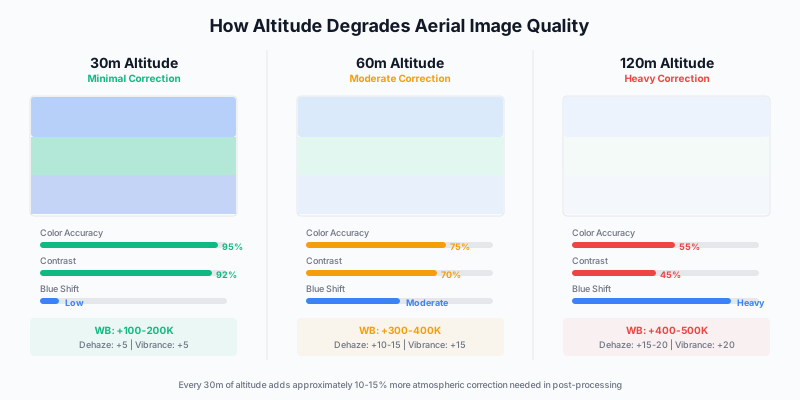
Images captured at altitude suffer from atmospheric effects that don’t exist at ground level:
- Blue color shift: Atmospheric haze scatters short-wavelength light, adding a blue-cyan cast
- Reduced contrast: The column of air between sensor and subject softens tonal separation
- Desaturation: Colors appear washed out compared to what you see at ground level
- UV haze: Ultraviolet light reduces apparent sharpness and clarity
- Flat lighting: Top-down perspective eliminates the directional light that creates dimension
Every one of these issues has a specific processing solution. The Mavic 4 Pro’s wider aperture (f/2.0) and improved sensor resolve slightly more atmospheric detail than previous drones, but the fundamental physics of shooting through a column of air remain unchanged. Even with 16 stops of dynamic range, altitude color correction is still the most critical part of drone post-processing.
HDR/AEB Processing: When and How
When Bracketing is Necessary
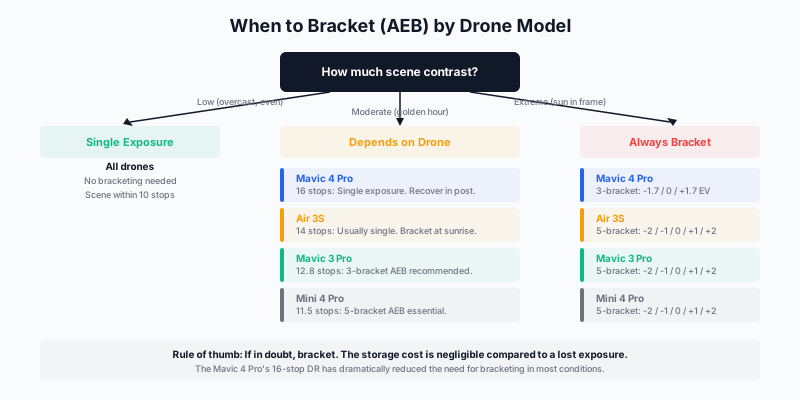
The calculus for HDR bracketing has shifted with the new generation of sensors. The decision now depends heavily on which drone you fly.
Mavic 4 Pro (16 stops, 14-bit RAW): Bracket only in extreme contrast situations — shooting directly into the sun, snow against deep shadow with more than 14 stops of scene range. Most sunrise and sunset scenes can be captured in a single exposure.
Air 3S (14 stops, 12-bit RAW): Bracket for high-contrast sunrise/sunset scenes. Most moderate-contrast landscapes work in a single exposure. The 1-inch sensor handles well, but the 12-bit limitation means aggressive shadow recovery shows its limits sooner than the Mavic 4 Pro.
Mavic 3 Pro (12.8 stops, 12-bit RAW): Bracket for any scene with significant contrast between sky and foreground. Sunrise, sunset, snow scenes, and bright sky over dark terrain all benefit from AEB.
Mini 4 Pro (11.5 stops, 12-bit RAW): Bracket generously. The smaller sensor clips highlights and crushes shadows more readily. AEB is the default for any scene beyond evenly lit overcast conditions.
AEB Settings by Drone
Mavic 4 Pro — high-contrast scenes:
3-bracket sequence: -1.7 EV, 0 EV, +1.7 EV (the extra dynamic range means narrower brackets are sufficient)
Air 3S, Mavic 3 Pro — high-contrast scenes:
5-bracket sequence: -2 EV, -1 EV, 0 EV, +1 EV, +2 EV
Mini 4 Pro — moderate to high contrast:
5-bracket sequence: -2 EV, -1 EV, 0 EV, +1 EV, +2 EV (use 5 brackets more frequently than with larger-sensor drones)
Keep the drone as steady as possible during the burst. Modern drones shoot AEB brackets in rapid succession (under 2 seconds for 5 frames), but wind gusts can cause alignment issues.
Merging HDR in Lightroom
- Select all bracketed frames from the sequence
- Photo > Photo Merge > HDR (Ctrl/Cmd+H)
- Configure:
- Auto Align: Yes (compensates for drone drift between frames)
- Deghost Amount: Medium (handles any subject movement — waves, vehicles, clouds)
- Create Stack: Yes (keeps your library organized)
- Merge creates a new DNG file with the extended dynamic range of all frames combined
The Cardinal Rule of HDR
The goal of HDR merging is to give you more data to work with, not to create a stylized effect. After merging, edit the resulting DNG conservatively. Use the additional shadow and highlight information for natural recovery, not for pushing every slider to its extreme.
Common HDR mistakes that mark amateur aerial work:
- Completely flat histogram with zero contrast
- Halos around high-contrast edges (trees against sky)
- Over-lifted shadows creating an unnatural glow
- Nuclear saturation from processing an already color-rich file
If someone can tell your image is HDR by looking at it, you have gone too far.
Lens Corrections: Non-Negotiable First Step
Enable Profile Corrections
Lightroom includes lens profiles for all current DJI drones, including the Mavic 4 Pro and Air 3S. Enable them immediately after import:
- Distortion correction: Removes barrel distortion from wide-angle drone lenses
- Vignette removal: Brightens darkened corners caused by lens design
These corrections change the geometry of the image, which affects everything from white balance readings to crop composition. Do them first.
The Mavic 4 Pro’s 28mm-equivalent main camera produces less barrel distortion than the typical 24mm-equivalent on other drones. The lens correction is subtler, but still necessary for clean architecture and horizon lines.
Manual Defringe
Drone lenses — especially on the Mini and Air series — produce color fringing at high-contrast edges. Purple and green fringing along tree lines against bright sky is common.
- Defringe: Amount 1-5 typically handles it
- Remove Chromatic Aberration: Always enabled
The Mavic 4 Pro’s Hasselblad optics produce less chromatic aberration than the Air and Mini lenses, but it is not zero. Check edges at 100% zoom.
Correcting the Altitude Color Shift
This is where drone editing diverges most sharply from standard landscape processing. Ground-level images generally have accurate color straight from the camera. Aerial images rarely do.
White Balance Correction
Drone images shot at altitude consistently skew cool. Your starting adjustment:
- Temperature: Warm by +200 to +500K from the camera’s default
- Tint: Usually accurate, but check for green/magenta shifts over water
Use the eyedropper on a known neutral surface if one exists in the frame — a gray road, a concrete roof, a sandy beach.
The Mavic 4 Pro’s Hasselblad color profile tends toward slightly warmer white balance out of camera compared to the Air and Mini series. You may find you need less warm-shift correction (+100 to +300K) on Mavic 4 Pro files than on Air 3S or Mini 4 Pro files.
Restoring Saturation and Contrast
After white balance correction:
| Adjustment |
Air 3S / Mini 4 Pro |
Mavic 3 Pro |
Mavic 4 Pro |
Purpose |
| Contrast |
+20 to +30 |
+15 to +25 |
+10 to +20 |
Counteracts atmospheric flatness |
| Vibrance |
+15 to +25 |
+10 to +20 |
+5 to +15 |
Restores lost saturation naturally |
| Dehaze |
+10 to +20 |
+5 to +15 |
+5 to +10 |
Removes haze, increases clarity |
| Clarity |
+15 to +25 |
+10 to +20 |
+5 to +15 |
Adds midtone punch |
Notice the trend: the Mavic 4 Pro needs less corrective adjustment than the other drones. Its larger sensor and improved optics capture more accurate color and contrast at altitude. This is one of the less-discussed benefits of better sensor technology — not just better files, but files that need less work.
Dehaze is particularly effective for aerial images because it directly addresses the atmospheric scattering that causes the problem. But restraint is critical — beyond +15 to +20, dehaze starts introducing artifacts and pushing colors into unnatural territory.
Processing 14-Bit Files: New Techniques for the Mavic 4 Pro
The shift from 12-bit to 14-bit RAW on the Mavic 4 Pro changes what you can do in post-processing. Here are techniques that work specifically because of the additional tonal depth.
Extended Shadow Recovery
With 12-bit files from the Mavic 3 Pro, Air 3S, or Mini 4 Pro, pushing shadow recovery beyond +2 EV introduces visible noise and color shift. The Mavic 4 Pro’s 14-bit files tolerate +3 to +4 EV of shadow recovery while maintaining clean detail and accurate color.
Practical technique: Expose for the highlights (preserve the sky) and recover the foreground in post. With 16 stops of dynamic range and 14-bit tonal depth, this single-exposure approach produces results that previously required HDR merging. The workflow is simpler and the output looks more natural because you avoid the alignment artifacts and deghosting compromises of HDR processing.
Smooth Gradient Editing
Sky gradients — the transition from blue sky to warm horizon at sunrise — are where bit depth becomes visible. In 12-bit files, aggressive manipulation of sky gradients produces banding: visible step transitions between tonal values. In 14-bit files, the same adjustments produce smooth, continuous gradations.
This matters when you use graduated filter masks to darken and color-shift skies, a standard landscape processing technique. With the Mavic 4 Pro’s 14-bit files, you can apply stronger graduated adjustments without the banding penalty.
The 100MP Mode Workflow
The Mavic 4 Pro’s 100MP quad-Bayer mode produces ~130 MB DNG files with exceptional detail for aerial subjects rich in texture: coastlines, agricultural patterns, urban grids, forest canopy. Process these files with higher Texture values (+30 to +50) than you would use on 20-25MP files. The additional resolution resolves detail that rewards texture enhancement without introducing the artificial sharpening artifacts that appear when you push lower-resolution files.
For print preparation, 100MP files can be output at 300 DPI for prints up to 41x27 inches with no upscaling whatsoever. This is a first for consumer drone photography.
Enhancing Patterns and Textures
Aerial photography reveals patterns that are invisible from ground level. Agricultural geometry, river delta branching, urban grids, tidal sand formations — these patterns are often the entire subject of the image. Processing should amplify them without making them look manufactured.
Pattern Enhancement Workflow
-
Global Texture: +20 to +40. This reveals surface detail across the entire frame — sand ripples, crop rows, building rooftops. Texture affects medium-frequency detail without the aggressive contrast look of Clarity.
-
Global Clarity: +15 to +25. Adds midtone contrast that makes patterns pop from their surroundings. Use less than you think you need.
-
Local Masks on Key Patterns: Use a brush or radial mask over the primary pattern area. Apply additional Texture (+10 to +20) and Contrast (+10 to +15) just to that zone. This draws the eye to the pattern without over-processing the entire frame.
-
Dehaze for Atmospheric Clarity: +10 to +20 globally removes the haze layer that sits between your drone and the pattern below.
Common Aerial Patterns Worth Emphasizing
- Agricultural fields and crop row geometry
- Braided river channels and delta formations
- Coastal wave patterns and foam lines
- Salt flat polygonal cracks
- Urban street grids at oblique angles
- Forest canopy color variation
- Beach sand ripple formations
Color Grading Aerial Landscapes
Natural Earth Tones
For images that should look like enhanced reality:
HSL Adjustments:
- Orange: +5 to +10 saturation (warms earth, sand, rock)
- Blue: +10 to +15 saturation, -10 luminance (deepens water and sky)
- Green: -5 saturation, +5 luminance (tames digital green, keeps it natural)
- Aqua/Cyan: +10 saturation (enhances tropical water)
Color Grading Panel:
- Highlights: Subtle warm shift toward orange/gold
- Shadows: Subtle cool shift toward blue/teal
- This creates the warm-cool contrast that gives aerial landscapes their dimensionality
Dramatic Processing
For images where mood takes priority over fidelity:
- Strong blue-teal and orange contrast through split toning
- Crushed blacks (raise the bottom of the tone curve) for a moody, cinematic feel
- Selective desaturation of secondary colors — keep only the dominant color pair
- Higher contrast (+30 to +50) for stark pattern definition
Use dramatic processing sparingly. One dramatically processed image in a series of ten is striking. Ten in a row is exhausting.
Perspective Correction for Angled Shots
Nadir (straight-down) shots rarely need perspective correction. But oblique angles — 30 to 60 degrees from vertical — cause converging verticals that make buildings lean and shorelines distort.
The Mavic 4 Pro’s Infinity Gimbal introduces a new consideration: with the ability to tilt upward by 70 degrees and shoot in portrait orientation, you may capture perspectives with more extreme convergence than any previous drone could produce. The Transform panel handles these well, but expect to use the Guided mode more frequently for shots that use the upward tilt.
Transform Panel solutions:
- Vertical: Corrects converging vertical lines
- Guided: Draw 2-4 lines along elements that should be vertical or horizontal for precise correction
- Auto: One-click correction that works surprisingly well for moderate distortion
Skip correction when the convergence is intentional — when you want the dramatic perspective of looking down a canyon wall or along a mountain ridge.
Preparing Drone Images for Large Prints
Resolution Reality Check
The current generation of drones has significantly expanded what is possible for print output.
| Drone Sensor |
Native MP |
Max Print at 300 DPI |
Max Print at 200 DPI |
| Mavic 4 Pro (100MP mode) |
100 MP |
41” x 27” |
61” x 41” |
| Mavic 4 Pro (native) |
25 MP |
20” x 14” |
30” x 20” |
| Air 3S (wide, 1”) |
50 MP |
34” x 26” |
51” x 39” |
| Mavic 3 Pro (4/3”) |
20 MP |
18” x 12” |
27” x 18” |
| Mini 4 Pro (1/1.3”) |
48 MP |
28” x 19” |
42” x 28” |
| Mavic 3 Classic (4/3”) |
20 MP |
18” x 12” |
27” x 18” |
The Mavic 4 Pro in 100MP mode and the Air 3S at 50MP both produce files large enough for gallery-scale prints without any upscaling. For the Mavic 4 Pro’s native 25MP and the Mavic 3 Pro’s 20MP, upscaling remains relevant for prints above 24 inches.
AI Upscaling for Larger Prints
Lightroom AI Super Resolution (Enhance > Super Resolution):
- Doubles linear dimensions (4x total pixel count)
- A 20 MP file becomes 80 MP; a 25 MP file becomes 100 MP
- Quality is excellent for moderate enlargement
- Creates a new DNG file
For Mavic 4 Pro users: Super Resolution applied to a native 25MP file produces a 100MP output — functionally similar to shooting in the camera’s own 100MP quad-Bayer mode, though with slightly different detail characteristics. Both approaches work for large prints.
Topaz Gigapixel AI:
- Superior for extreme enlargements (3x and beyond)
- Recovers detail that Lightroom’s upscaler misses
- Worth the investment if you sell prints from drone imagery
Print Sharpening for Aerials
Aerial images often benefit from stronger output sharpening than ground-based photos because the aerial perspective reduces perceived detail contrast:
- Export with Output Sharpening set to Standard or High
- Select the correct paper type: Matte sharpening is stronger than Glossy to compensate for ink absorption
Removing Distractions
Common Aerial Distractions
- Your drone’s shadow on the ground
- Moving vehicles on roads
- People who break a natural pattern
- Construction equipment or dumpsters
- Power lines crossing the frame
Lightroom’s Content-Aware Remove Tool
The Remove tool (Q) handles most aerial distractions well because aerial images typically have repetitive surrounding textures that provide clean source material:
- Select the Remove brush
- Paint over the distraction
- Let the AI fill from surrounding area
- Adjust the source point if the initial fill looks wrong
For complex removals — large structures, intersecting distractions — export to Photoshop and use Generative Fill or the Clone Stamp with more control.
Batch Processing Aerial Series
Images from a single flight share identical lighting conditions, white balance, and atmospheric effects. This makes them ideal candidates for batch processing:
- Edit one representative image from the flight
- Select all images from the same flight session
- Sync Settings — sync white balance, exposure, color grading, and lens corrections
- Fine-tune individuals as needed (crop, local masks, spot removal)
Important for mixed-drone workflows: If you fly multiple drones on the same shoot (a common approach for professionals who carry a Mavic 4 Pro and a Mini 4 Pro), do not sync settings across drone models. The different sensors, lenses, and color profiles mean that settings optimized for one drone will not translate correctly to another. Process each drone’s files as a separate batch.
Build Aerial Presets
Create presets for recurring aerial scenarios. With the current generation of drones, consider drone-specific variants:
- “Mavic 4 Pro Base”: Lens profile, CA removal, minimal warm shift (+200K), light dehaze (+5)
- “Air 3S Base”: Lens profile, CA removal, moderate warm shift (+400K), dehaze (+10), vibrance (+15)
- “Mini 4 Pro Base”: Lens profile, CA removal, defringe, warm shift (+400K), dehaze (+15), vibrance (+20)
- “Coastal Aerial”: Blue/aqua enhancement, wave texture boost, warm highlights
- “Forest Canopy”: Green balance, luminance lift, texture enhancement
- “Urban Pattern”: High contrast, strong clarity, geometric sharpening
- “Sunset Aerial”: Warm highlights, cool shadows, highlight recovery
Exercises
Exercise 1: The HDR Discipline Test
Shoot a 5-bracket AEB sequence at sunrise. Merge in Lightroom. Process the HDR result with the goal that no viewer can tell it is an HDR image. If it looks like HDR, start over.
Exercise 2: Altitude Color Correction
Take the same subject from three altitudes — 30m, 60m, and 120m. Process all three to match visually. Notice how much more correction the higher-altitude image requires. This builds your intuition for altitude-dependent processing.
Exercise 3: Single Exposure vs. HDR (Mavic 4 Pro)
If you fly a Mavic 4 Pro, shoot the same high-contrast sunrise scene twice: once as a single exposure (exposed for highlights) and once as a 3-bracket AEB. Process both to the same final look. Compare the results. You may find that the single-exposure workflow produces more natural-looking results for scenes within 14 stops of contrast.
Exercise 4: Pattern Enhancement
Find a scene with strong geometric patterns — agricultural fields, parking lots, harbor marinas. Process it twice: once with global adjustments only, once with local masks on the primary pattern. Compare the focus and visual impact.
Exercise 5: Print Preparation
Take your best aerial image and prepare it for a 24x36” print. Use AI Super Resolution if needed, apply print-specific sharpening, and export in Adobe RGB at 300 DPI. If possible, order a test print to see how the aerial detail holds up at large scale.
The Aerial Post-Processing Mindset
Processing drone images well requires understanding that you are correcting for two things simultaneously: the limitations of a small sensor and the optical effects of atmosphere at altitude. Ground-based processing only deals with the first.
The current generation of drones — particularly the Mavic 4 Pro with its 14-bit RAW and 16-stop dynamic range — has reduced the first problem substantially. You have more data to work with, smoother tonal gradations, and cleaner shadow recovery than any previous consumer drone. But the atmosphere at altitude does not care what sensor you fly. The blue color shift, the contrast reduction, the desaturation — these are physics, and they require the same deliberate correction regardless of your drone.
Every adjustment you make should answer one question: does this bring the image closer to what the scene actually looked like — or further away? The answer determines whether you are processing or merely filtering.
The best aerial photographs don’t look processed at all. They look like the view from a window seat at exactly the right moment, in exactly the right light. Getting there requires more work than most people realize — and that work starts with understanding the specific challenges these images present.