The Print That Looked Nothing Like Your Screen
You spent forty minutes in Lightroom perfecting a landscape image. Deep shadow detail, rich saturated greens, a sunset that glows with the warmth you remember from the field. You hit print. What emerges from your Epson is a muddy, desaturated approximation that looks like someone draped a gray cloth over your photograph.
This is not a printer problem. It is not a paper problem. It is a color management problem, and it is the single most common failure point for photographers who have mastered capture and processing but never learned the discipline of output.
Color management is the chain that connects what your camera captures to what your eyes see on screen to what ink deposits on paper. Break any link in that chain and your prints will disappoint you. Master every link and your prints will match, and sometimes exceed, what you see on your calibrated display.
This guide covers the entire pipeline, from monitor calibration through ICC profiles, soft proofing, paper selection, printing, and gallery presentation. It is written for photographers who own or are ready to invest in a serious desktop printer and want gallery-quality results from their own studio.
Monitor Calibration: The Foundation Everything Depends On
Every color decision you make in post-processing is only as reliable as the display you make it on. An uncalibrated monitor is a liar. It shows you colors that do not exist in your file, brightness levels that are wrong, and a contrast curve that reflects the factory default rather than any photographic standard.
Calibrating your monitor means creating an ICC profile, a small file that tells your operating system exactly how your specific monitor reproduces color, so it can compensate for any inaccuracies. The result is a display that shows you what is actually in your file, not what your panel happens to produce.
Hardware Calibrators: The Only Option That Works
Software-only calibration tools that ask you to visually match color patches are worse than useless. Human color perception is wildly inconsistent and influenced by ambient light, fatigue, and the colors surrounding the patch. You need a hardware colorimeter that physically measures what your monitor emits.
The two serious options for photographers:
| Calibrator |
Price |
Key Strength |
Best For |
| X-Rite i1Display Studio |
~$270 |
Ambient light measurement, profiling projectors |
Serious print makers, multi-display setups |
| Datacolor SpyderX Pro |
~$170 |
Fast calibration, simple UI, good accuracy |
Single-display photographers, first calibrator |
| X-Rite i1Display Pro Plus |
~$350 |
Film-grade accuracy, unlimited displays |
Commercial printing, color-critical work |
| Datacolor SpyderX Elite |
~$250 |
Expert controls, room light monitoring |
Advanced users who want granular control |
Calibration Settings for Photography
When your calibration software asks for target settings, use these values:
- White point: D65 (6500K). This is the daylight standard and matches the illuminant assumed by most color spaces. Some printers suggest D50 (5000K) for print matching, but D65 is the more versatile choice for photographers who also output to web.
- Luminance: 120 cd/m2. This is bright enough to see shadow detail without being so bright that it misrepresents how your prints will look under gallery lighting. If you work in a very dark room, drop to 100 cd/m2.
- Gamma: 2.2 (the sRGB/Windows standard) or native if your software recommends it.
- Recalibrate every 4 weeks. Monitor output drifts over time as the backlight ages. Monthly recalibration keeps your profiles accurate.
The Monitor Itself Matters
Calibration cannot fix a fundamentally limited display. If your monitor covers only 72% of sRGB (common in budget laptops), calibration will make those 72% accurate, but the missing 28% of the color space simply does not exist on that screen.
For print-quality work, look for monitors covering at least 99% sRGB and 90%+ Adobe RGB. The BenQ SW270C, ASUS ProArt PA278CV, and Eizo ColorEdge CS2740 are all strong choices for photographers. An Adobe RGB-capable display shows you colors that actually exist in your print gamut but are invisible on an sRGB panel.
Understanding ICC Profiles and Color Spaces in Practice
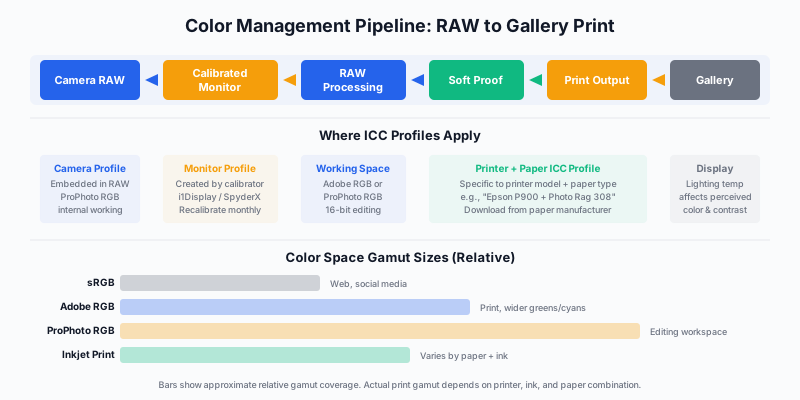
Color management revolves around ICC profiles, small files that describe how a device (camera, monitor, printer) reproduces color. Every conversion in the pipeline uses these profiles to translate color accurately from one device to another.
The Three Color Spaces You Need to Understand
sRGB is the smallest common color space. It was designed in 1996 for CRT monitors and remains the standard for web display. Every browser, every phone, every social media platform assumes sRGB. If your final output is screen-only, sRGB is your delivery space. But it clips significant portions of the greens, cyans, and deep blues that modern cameras capture and modern printers can reproduce.
Adobe RGB is roughly 35% larger than sRGB, primarily expanding into the greens and cyans. It was designed for print reproduction and covers most of what a high-quality inkjet printer can produce. If you print your work, Adobe RGB is your minimum working space.
ProPhoto RGB is enormous, encompassing colors that no current display or printer can reproduce and even colors that fall outside human vision. It sounds excessive, but there is a practical reason to edit in ProPhoto RGB: it preserves every scrap of color data your camera captured, giving you maximum flexibility during processing. Lightroom uses a variant of ProPhoto RGB (called Melissa RGB) as its internal working space.
The critical rule: edit in the largest space possible, deliver in the space your output requires. Edit in ProPhoto RGB, export for web in sRGB, export for print in Adobe RGB (or using the printer’s ICC profile directly).
Bit Depth and Why It Matters for Printing
When you edit in 8-bit mode, each color channel has 256 levels. When you edit in 16-bit mode, each channel has 65,536 levels. The difference is invisible on screen but becomes visible in prints, especially in smooth gradients like skies and water.
8-bit editing in a large color space (like ProPhoto RGB) produces posterization, visible banding where smooth transitions break into discrete steps. The larger the color space, the more bits you need to describe smooth transitions within it.
Always edit in 16-bit when your destination is print. Convert to 8-bit only for web delivery. In Lightroom, export TIFFs at 16-bit for print; export JPEGs (inherently 8-bit) only for screen use.
Soft Proofing in Lightroom: Seeing Your Print Before Printing
Soft proofing simulates how your image will look when printed on a specific paper with a specific printer, right on your calibrated monitor. It is the most underused feature in Lightroom and the single most effective way to reduce wasted ink and paper.
How to Soft Proof
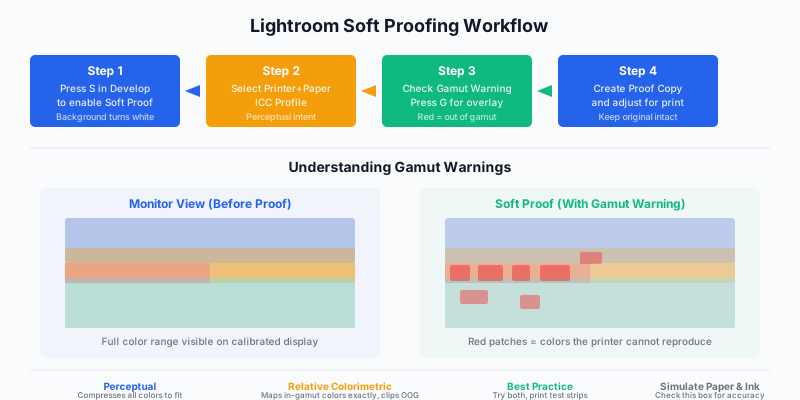
- Enter the Develop module and press S to enable Soft Proofing. The background turns white (simulating paper white) and a “Proof Preview” label appears.
- Select your ICC profile from the Profile dropdown. This should be the specific profile for your printer and paper combination (e.g., “Epson P900 Hahnemuhle Photo Rag 308”). Download these from the paper manufacturer’s website.
- Choose your rendering intent: Perceptual or Relative Colorimetric. Perceptual compresses the entire tonal range to fit the print gamut, maintaining relationships between colors. Relative Colorimetric maps in-gamut colors accurately and clips out-of-gamut colors to the nearest printable value. Try both and print test strips.
- Enable Simulate Paper & Ink (checkbox below the profile selector). This is the most accurate preview mode: it simulates the reduced dynamic range and warm tint of the paper itself.
- Toggle the gamut warning by pressing G. Areas highlighted in red contain colors your printer cannot reproduce on the selected paper.
Creating a Proof Copy
When you start adjusting sliders in Soft Proof mode, Lightroom asks if you want to create a Proof Copy. Always say yes. This creates a virtual copy specifically optimized for that paper, preserving your original edit for screen display.
Typical adjustments for a print proof copy:
- Increase contrast slightly: Prints have lower dynamic range than monitors. Compensate by pushing contrast.
- Open shadows: Shadows that look detailed on screen often block up in print. Lift them 10-15 points.
- Add vibrance to compensate for Dmax: Matte papers in particular absorb light that would otherwise reflect saturated color back to the viewer. A +10 to +15 vibrance boost often brings the print closer to your screen experience.
- Sharpen specifically for output: Print sharpening should be more aggressive than screen sharpening. Use the output sharpening options in the Lightroom Print module or export dialog (Standard for Matte, Low for Glossy).
Paper Selection: The Most Consequential Creative Decision in Printing
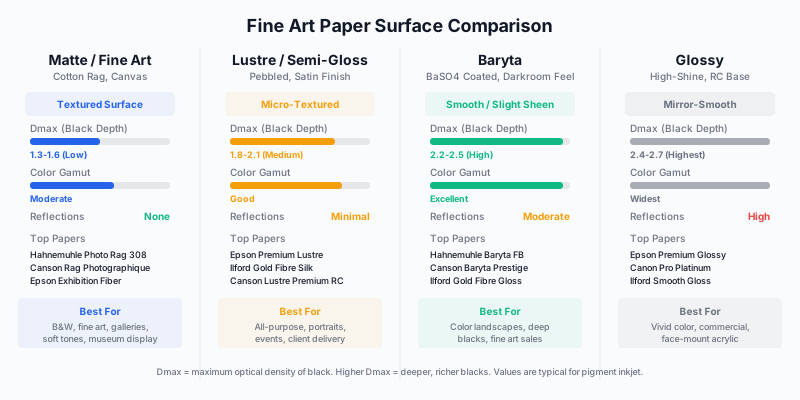
The paper you print on changes the character of your image more than any Lightroom slider. A moody black-and-white forest scene on baryta paper has a completely different emotional register than the same image on matte cotton rag. Paper is not a substrate; it is a creative choice.
Matte and Fine Art Papers
Character: Soft, textured, no reflections. Blacks are softer (lower Dmax). Colors are muted but elegant. The texture of the paper itself becomes part of the viewing experience.
Best for: Black-and-white work, soft landscapes, atmospheric images, gallery and museum display (no glare under spotlights), fine art editions.
Top choices:
- Hahnemuhle Photo Rag 308 gsm: The benchmark fine art paper. 100% cotton rag, smooth matte surface, excellent ink absorption. If you try one matte paper, try this one.
- Canson Rag Photographique 310 gsm: Slightly warmer tone than Photo Rag, beautiful with warm-toned landscapes.
- Hahnemuhle William Turner 310 gsm: Textured watercolor-like surface for images that benefit from an artistic, handmade feel.
Baryta Papers
Character: The bridge between matte and glossy. Baryta is a barium sulfate coating (BaSO4) traditionally used in darkroom fiber-based papers. Inkjet baryta papers replicate that classic darkroom look: deep blacks, rich color, and a subtle sheen without mirror-like reflections.
Best for: Color landscapes with deep shadows, dramatic skies, any image where you need deep blacks but cannot tolerate the reflections of glossy. The connoisseur’s choice.
Top choices:
- Hahnemuhle Photo Rag Baryta 315 gsm: Combines cotton rag texture with baryta black depth. Extraordinary tonal range.
- Canson Baryta Prestige 340 gsm: Slightly glossier than Photo Rag Baryta, with the deepest blacks in the baryta category.
- Ilford Gold Fibre Silk 310 gsm: A warm-tone baryta with a pearl-like surface. Exceptional for warm landscapes and golden hour scenes.
Lustre and Semi-Gloss
Character: Micro-textured surface that resists fingerprints and glare while delivering good color saturation and respectable blacks. The workhorse of professional photography.
Best for: Client delivery, event photography, portrait work, any print that will be handled frequently.
Glossy
Character: Maximum color gamut and deepest possible blacks. Mirror-smooth surface creates vivid, punchy images but reflects light aggressively, making it problematic in gallery settings.
Best for: Face-mounted acrylic displays (where the acrylic eliminates direct glare), commercial work, prints behind glass in specific lighting.
A Paper Testing Protocol
Before committing to a paper for an edition, print a standardized test image that contains:
- Deep shadow areas
- Bright highlight gradients (especially white-to-light-blue sky transitions)
- Neutral gray patches
- Saturated reds, greens, and blues
- Fine detail areas
- Skin tones (if relevant)
Print this test image on three candidate papers and evaluate under the same lighting conditions where the print will hang. Most paper manufacturers sell sample packs specifically for this purpose.
Printing at Home: The Professional Desktop
The two dominant prosumer printers for fine art photographers are the Epson SureColor P900 and the Canon imagePROGRAF PRO-300. Both produce gallery-quality output. The choice between them is less about quality (both are excellent) and more about ink system, paper handling, and your specific workflow.
Epson SureColor P900
| Specification |
Detail |
| Print width |
Up to 17 inches |
| Ink system |
UltraChrome Pro10, 10 pigment inks |
| Ink cartridge size |
50ml (25ml for some colors) |
| Max print length |
129 inches (roll feed capable) |
| Key advantage |
10-ink system for widest color gamut, excellent B&W with 3 levels of black |
| Key limitation |
Higher ink cost per print, larger footprint |
| Street price |
~$900 |
The P900 uses ten pigment-based inks, including three levels of black (Photo Black, Light Black, Light Light Black) that produce neutral, grain-free black-and-white prints rivaling traditional silver gelatin. For photographers who sell black-and-white fine art, this is the decisive advantage.
Canon imagePROGRAF PRO-300
| Specification |
Detail |
| Print width |
Up to 13 inches |
| Ink system |
LUCIA PRO, 10 pigment inks + Chroma Optimizer |
| Ink cartridge size |
Larger capacity than equivalent Epson |
| Max print length |
39 inches (cut sheet only) |
| Key advantage |
Chroma Optimizer reduces bronzing and metamerism, lower cost per print |
| Key limitation |
No roll feed, max 13” width |
| Street price |
~$700 |
The PRO-300’s Chroma Optimizer is a clear coating that smooths the paper surface, reducing bronzing (a color shift visible at certain viewing angles on glossy and semi-gloss papers). If you print primarily on glossy or baryta papers, this is a meaningful advantage.
Print Driver Settings That Matter
When printing from Lightroom or Photoshop, follow this workflow:
- Let Lightroom/Photoshop manage colors (not the printer driver). In the print dialog, set color management to “Lightroom Manages Colors” or “Photoshop Manages Colors.”
- Select the correct ICC profile for your specific printer + paper combination.
- In the printer driver, disable all color management (set to “No Color Adjustment” on Epson, “None” on Canon). This prevents the driver from applying a second color transformation on top of Lightroom’s.
- Set the correct media type in the driver. Even with color management handled by Lightroom, the media type setting affects ink density and head speed.
- Select the highest quality mode available. The difference in ink cost between draft and best quality is negligible, but the difference in output quality is visible.
Print Labs: When to Outsource
Not every print needs to come from your desktop. Large-format prints (24x36 and above), metallic finishes, canvas wraps, and face-mounted acrylics are better handled by professional labs that have wide-format printers, finishing equipment, and volume pricing.
Recommended Labs
| Lab |
Strengths |
Best For |
| WhiteWall (Germany) |
Gallery-grade acrylic face mounts, aluminum, Fuji Crystal Archive |
Exhibition prints, acrylic displays |
| Bay Photo (USA) |
Wide format, canvas, metal prints, fast turnaround |
Large-format landscape, commercial |
| MPIX (USA) |
Consistent quality, competitive pricing |
Client delivery, volume prints |
| Loxley Colour (UK) |
Fine art giclees, handmade frames |
European galleries, collectors |
When to Print at Home vs. Lab
Print at home when:
- You need precise color control and are willing to soft proof and test
- Editions are small (fewer than 10 prints)
- Print size is 17 inches or smaller (P900) or 13 inches or smaller (PRO-300)
- You want the satisfaction and quality control of producing your own prints
Use a lab when:
- Print size exceeds your printer’s maximum width
- You need specialty finishes (metal, acrylic, canvas)
- You are printing more than 20 copies of the same image (volume pricing)
- You need professional mounting and framing as part of the order
Gallery Mounting and Presentation
How you mount and frame a print is not an afterthought. It is part of the work. A beautiful print in a cheap frame with non-archival matting is a waste of paper and ink.
Face Mount (Diasec / Acrylic)
The print is bonded face-first to a sheet of acrylic (typically 2-4mm) with a backing of aluminum Dibond. The acrylic saturates colors, deepens blacks, and creates a luminous, almost backlit appearance. This is the dominant presentation format in contemporary photography galleries.
Pros: Extraordinary color depth and luminosity, no glass reflections (the acrylic IS the surface), archival when UV-filtering acrylic is used, modern and clean appearance.
Cons: Expensive ($200-600+ per piece depending on size), surface scratches are difficult to repair, heavy.
Float Mount
The print is mounted to a rigid substrate (Gatorfoam, Dibond, or wood panel) and hung with a cleat that holds the piece 1-2 inches off the wall. The shadow cast behind the print creates a floating effect.
Pros: Clean, frameless look. Lighter than framed work. The shadow adds visual depth.
Cons: Print surface is exposed (no protective glass or acrylic). Best for textured fine art papers that are less susceptible to damage than glossy surfaces.
Traditional Framing with Archival Mat
The classic presentation. The print sits behind an acid-free mat inside a frame under glass or acrylic glazing.
Key rules for archival framing:
- Mat board: 100% cotton rag, acid-free, buffered. Crescent or Bainbridge conservation grade.
- Glazing: Museum glass (anti-reflective, UV-filtering). Tru Vue Museum Glass is the industry standard. It is expensive. It is worth it.
- Hinge mounting: Attach the print to the backing board with acid-free linen tape hinges at the top only. Never dry-mount a fine art print; it is irreversible and destroys collectible value.
- Spacer: Use a mat or spacer to ensure the print surface never touches the glazing. Contact causes sticking, especially in humid environments.
Edition Sizing and Pricing for Fine Art Sales
If you sell prints as fine art, you need an edition strategy. Open editions (unlimited prints) depress perceived value. Limited editions create scarcity, which drives collector interest and supports higher prices.
Edition Structure
| Print Size |
Edition Size |
Suggested Starting Price |
| Small (up to 16x20”) |
25-50 |
$250-500 |
| Medium (20x30” to 24x36”) |
10-25 |
$600-1,500 |
| Large (30x45” to 40x60”) |
5-10 |
$1,500-4,000 |
| Extra Large (48x72”+) |
3-5 |
$4,000-10,000+ |
These are starting points for emerging photographers with a gallery presence. Established photographers with exhibition history, publications, and collector base command multiples of these figures.
Certificate of Authenticity
Every limited edition print must ship with a signed Certificate of Authenticity that includes:
- Title of the work
- Edition number (e.g., 3/10)
- Print dimensions and paper type
- Date of printing
- Your signature
- A unique edition tracking number
Maintain a master edition ledger tracking every print sold, to whom, and when. This is your provenance record and it matters to collectors.
Pricing Psychology
Price your prints based on the size tier, not on how long the image took to capture or process. A photograph you made in five minutes during a chance encounter has the same market value as one you spent a week planning, if the image quality and emotional impact are equivalent.
Raise prices as editions sell. A common strategy: price escalation at 1/3 and 2/3 sold. If an edition of 15 is priced at $800, raise to $1,000 after 5 sales and $1,200 after 10 sales. This rewards early collectors and creates urgency.
Exercises: Calibrate, Proof, and Print a Portfolio Piece
Exercise 1: The Calibration Baseline
Calibrate your monitor using hardware, then display a print-resolution image of a scene you have physically visited recently. Evaluate whether the monitor now matches your memory of the scene’s colors and tonality more accurately than before calibration. This establishes your perceptual baseline and proves to you that calibration works.
Exercise 2: The Three-Paper Comparison
Select one of your strongest images, something with a wide tonal range from deep shadows to bright highlights. Purchase sample packs of three papers: one matte (Hahnemuhle Photo Rag 308), one baryta (Canson Baryta Prestige), and one lustre. Soft proof for each paper profile, create three proof copies with paper-specific adjustments, and print all three. Evaluate them side by side under consistent lighting. You will discover that paper choice is as creatively significant as any processing decision.
Exercise 3: The Gamut Warning Drill
Open ten of your most vivid images in Lightroom Develop. Enable soft proofing with a matte fine art paper profile and toggle the gamut warning on. Study which colors in each image fall outside the paper’s gamut. Practice pulling those colors back into gamut using HSL adjustments and targeted saturation reductions. The goal is to maintain the image’s visual impact while eliminating clipped colors.
Exercise 4: The Edition Package
Select your single strongest portfolio image. Soft proof it, optimize the proof copy, and print it on your chosen paper. Mount or mat it properly. Write a Certificate of Authenticity. Price it. This exercise forces you through the complete pipeline from file to finished product and reveals every gap in your process.
Exercise 5: Lab vs. Home Comparison
Upload your optimized file to a professional lab (WhiteWall or Bay Photo) and order the same image in the same approximate size on a similar paper to what you used at home. Compare the lab print to your home print under identical lighting. This teaches you the practical differences between home and lab output and helps you decide when each approach is appropriate.
Conclusion
A photograph is not finished until it is printed. The screen is a draft; the print is the work. This conviction has driven photographers from Ansel Adams through Peter Lik, and it separates photographers who make files from photographers who make art objects.
The color management pipeline is not glamorous work. Calibrating a monitor, downloading ICC profiles, running test strips, evaluating papers under controlled lighting: none of this has the romance of standing on a ridge at sunrise with your camera. But it is the discipline that transforms your digital files into physical objects that can hang on a wall, be held in a collector’s hands, and endure for generations.
Master this pipeline. Buy a hardware calibrator this week. Soft proof your next image before you print it. Try a paper you have never used. Print the image you have been meaning to print for three years. The screen shows a promise. The print delivers it.