You Already Know How to See. Now Learn How to Move.
You have spent years training your eye to find composition in a single frozen moment. You understand light, exposure, and the decisive instant that makes a photograph work. Then someone asks you to shoot video on a trip, and suddenly you feel like a beginner again.
The footage is shaky. The exposure keeps shifting. The audio is terrible. You have no idea what to do with the clips when you get home. Every photographer who has attempted video for the first time knows this frustration.
Here is the thing most video tutorials will not tell you: your photography skills are not the problem. They are your greatest advantage. You already understand the two hardest elements of visual storytelling, composition and light. What you are missing is a handful of technical concepts specific to motion and a framework for thinking in sequences rather than single frames.
This guide bridges that gap. It covers the essential technical knowledge, the camera movements that separate cinematic footage from home video, the audio capture that photographers consistently neglect, drone-specific video techniques, and a straightforward editing workflow that turns raw clips into a polished travel film.
The 180-Degree Shutter Rule and ND Filters for Video
Photographers control motion blur with shutter speed. Want to freeze action? Use 1/1000. Want silky water? Use 1 second. In video, this freedom disappears.
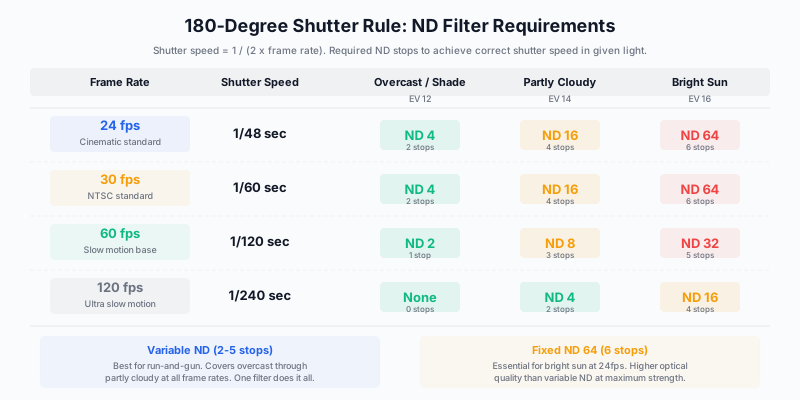
The 180-degree shutter rule dictates that your shutter speed should be approximately double your frame rate. At 24 fps, your shutter speed is 1/48 (rounded to 1/50 on most cameras). At 30 fps, it is 1/60. At 60 fps, it is 1/120.
This rule exists because it produces the motion blur that human vision expects. Faster shutter speeds create a staccato, Saving Private Ryan look, where every frame is tack-sharp and motion feels jarring. Slower shutter speeds create excessive blur that looks like a mistake. The 180-degree rule sits in the perceptual sweet spot.
The problem for photographers is immediate and obvious: on a bright day at f/5.6, ISO 100, and 1/50 shutter speed, your image is wildly overexposed. You cannot stop down to f/22 without severe diffraction. You cannot drop below ISO 100 on most cameras.
The solution is ND filters. For video, ND filters are not optional accessories; they are essential tools.
The Variable ND: Your Run-and-Gun Lifesaver
A variable ND filter (typically 2-5 or 2-8 stops) lets you dial in exactly the amount of light reduction you need by rotating the front ring. For travel video, where light changes constantly as you move between sun and shade, interior and exterior, a variable ND is indispensable.
Buy quality. Cheap variable NDs produce an ugly cross-pattern artifact at their maximum density and shift color toward magenta. The PolarPro Peter McKinnon VND, Freewell Magnetic VND, and NiSi True Color VND are all reliable choices. Expect to spend $80-150 for a good one.
For maximum optical quality in controlled situations, a fixed ND64 (6-stop) covers bright sunlight at 24fps. But the variable ND handles 90% of travel video scenarios in a single filter.
What About Auto ISO?
Some photographers ask whether they can use auto ISO instead of ND filters, letting the camera adjust sensitivity to maintain correct exposure at a locked shutter speed. You can, but the results are inferior. Auto ISO introduces noise that fluctuates frame-to-frame in a way that looks worse in motion than in stills, and modern noise reduction algorithms designed for video often introduce artifacts of their own.
Lock your ISO manually. Use ND to control light. Accept this discipline.
Frame Rate Selection: 24p, 30p, 60p, and When Each Matters
Frame rate is a creative choice, not a technical default. Each rate has a distinct visual character, and choosing incorrectly undermines the mood of your film.
| Frame Rate |
Character |
When to Use |
| 24 fps |
Cinematic, warm, slightly dreamy motion blur |
Narrative travel films, story-driven content, anything you want to feel like a movie |
| 30 fps |
Smooth, neutral, slightly more “real” |
Vlogs, documentary work, talking-head content, content destined for TV broadcast in NTSC regions |
| 60 fps |
Very smooth, hyper-real, ideal slow-motion base |
Shoot at 60 fps, play back at 24 fps for 2.5x slow motion. The workhorse for travel B-roll |
| 120 fps |
Ultra slow motion, dramatic emphasis |
Key hero moments: waterfalls, wildlife, breaking waves, vehicle motion. 5x slow motion at 24 fps |
The Two-Rate Workflow
Most professional travel filmmakers use a two-rate workflow:
- 24 fps for all primary footage: Walking shots, pans, establishing shots, anything played at normal speed.
- 60 fps for B-roll and action: Handheld walking footage, markets, water, vehicles, people in motion. Edit these clips onto a 24 fps timeline and they automatically become smooth 2.5x slow motion.
This workflow gives you the cinematic feel of 24p with the versatility of slow motion whenever you need it. Most modern mirrorless cameras let you switch between 24 and 60 fps quickly, or you can assign each rate to a custom shooting mode.
Do not shoot everything at 60 fps and play it at normal speed on a 24 fps timeline. The result looks unnaturally smooth, like a soap opera. The 60 fps footage must be slowed down to work on a 24p timeline.
Stabilization: Gimbals, IBIS, and the Physics of Smooth Motion
Shaky footage is the single fastest way to make professional-quality video look amateur. Photographers are accustomed to handheld shooting because a sharp 1/500 second frame forgives a lot of camera shake. A 4-second video clip at 1/50 forgives nothing.
Three Layers of Stabilization
Layer 1: In-Body Image Stabilization (IBIS)
Modern mirrorless cameras from Sony, Canon, Nikon, and Panasonic include sensor-shift IBIS rated for 5-8 stops of stabilization. For video, IBIS smooths micro-vibrations and gentle walking motion. It does not replace a gimbal for significant camera movement, but it makes static and near-static shots dramatically smoother.
Layer 2: Handheld Gimbal
A 3-axis motorized gimbal like the DJI RS 4 Pro, DJI RS 4, or Zhiyun Weebill-3S physically counteracts rotation on the pan, tilt, and roll axes. The result is footage so smooth it appears to float through space.
For photographers, the DJI RS 4 (not the Pro) hits the optimal balance of payload capacity, size, and weight for mirrorless cameras with moderate lenses. The RS 4 Pro handles heavier cinema setups but adds weight you may not want on a travel shoot.
| Gimbal |
Max Payload |
Weight |
Key Feature |
Price |
| DJI RS 4 |
3 kg |
1.1 kg |
Native Bluetooth shutter, LiDAR focus |
~$500 |
| DJI RS 4 Pro |
4.5 kg |
1.4 kg |
Dual NATO mounts, longer battery |
$869 |
| Zhiyun Weebill-3S |
3 kg |
1.1 kg |
Built-in fill light, sling mode |
~$350 |
| DJI Osmo Mobile 7P |
0.3 kg |
0.3 kg |
Phone gimbal, AI tracking |
~$159 |
Layer 3: Post-Production Stabilization
DaVinci Resolve, Premiere Pro, and Final Cut Pro all include software stabilization that analyzes footage and applies corrective transforms. This works well for mild shake correction but produces a visible warping artifact on footage with severe motion. Use it as a safety net, not a crutch.
The Ninja Walk
Regardless of equipment, how you walk while filming matters more than what you carry. The “ninja walk” technique used by professional gimbal operators:
- Bend your knees slightly (never lock them)
- Roll your feet heel-to-toe with each step
- Keep your elbows tucked against your torso
- Move at roughly half your normal walking speed
- Breathe steadily, never hold your breath
This technique, combined with IBIS or a gimbal, produces footage that rivals dolly and track shots costing thousands in rental equipment.
Five Essential Camera Movements for Travel Cinematography
Owning a gimbal makes you a gimbal operator. Making deliberate, purposeful camera movements makes you a cinematographer. Every movement should reveal information, guide the viewer’s eye, or create an emotional response. Movement without purpose is just noise.
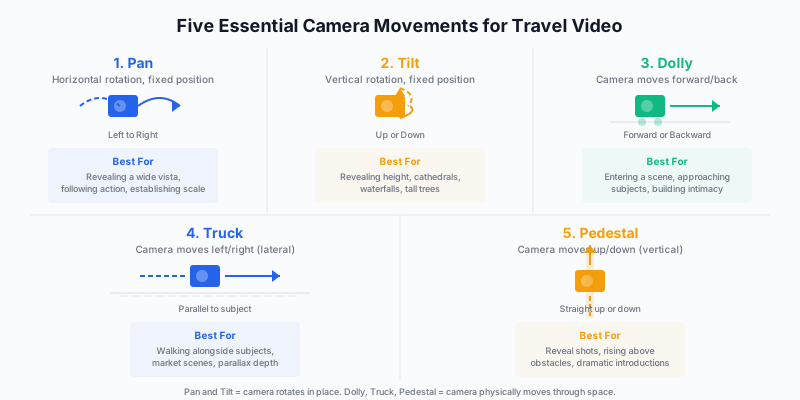
1. Pan (Horizontal Rotation)
The camera stays in place and rotates horizontally, typically following action or revealing a wide vista. The most common mistake: panning too fast. A cinematic pan moves slowly enough that the viewer can process every element in the frame. For a landscape reveal, take 8-12 seconds to pan across the full scene.
Travel use: Revealing a panoramic vista, following a person walking through a market, surveying a cityscape from a rooftop.
2. Tilt (Vertical Rotation)
The camera stays in place and rotates vertically. Tilt up reveals height; tilt down reveals depth. Like the pan, speed control is everything.
Travel use: Tilting up the facade of a cathedral, tilting down from a mountain summit to the valley floor, revealing a waterfall from top to base.
3. Dolly (Forward/Backward Movement)
The camera physically moves forward into a scene or backward away from it. This is the most emotionally potent movement because it changes the viewer’s spatial relationship with the subject. Moving toward a subject creates intimacy and focus. Moving backward creates context and reveals.
Travel use: Walking through a doorway into a temple, approaching a food vendor at a market, pulling back from a campfire to reveal the surrounding landscape.
4. Truck (Lateral Movement)
The camera moves sideways, parallel to the subject. Trucking creates parallax, the visual effect where foreground objects move faster than background objects, giving the shot three-dimensional depth.
Travel use: Walking alongside a subject on a street, moving past market stalls, sliding past columns in an arcade. This is the movement that most benefits from a gimbal, because lateral walking without stabilization is extremely shaky.
5. Pedestal (Vertical Movement)
The camera moves straight up or straight down. Less common than the other four but powerful for reveal shots: rising from behind a wall to reveal a landscape, descending from a high position to meet a subject at eye level.
Travel use: Rising above a crowd to reveal a festival, descending from a balcony to street level, the “crane up” shot that marks transitions between scenes.
Combining Movements
The most compelling shots combine two movements simultaneously. A dolly-in while tilting up creates a powerful approach to a tall subject. A truck right while panning left keeps a subject centered as you move past them. Start by mastering each movement individually, then begin combining them once each feels natural.
Audio Capture: The Element Photographers Always Forget
Photographers spend thousands on lenses and hours perfecting color, then record audio on the camera’s built-in microphone, which captures wind noise, camera handling sounds, and a tinny, echo-laden version of the actual environment.
Audio is half the experience of a film. A travel video with clean ambient sound, the murmur of a market, the crash of waves, birdsong in a forest, is immersive. The same video with camera mic audio is unwatchable.
Wireless Microphone Systems
For travel filmmakers, wireless lavalier systems are the most versatile audio solution. They capture clean audio of a narrator or subject without a visible boom pole.
| System |
Channels |
Range |
Key Feature |
Price |
| Rode Wireless GO II |
2 TX, 1 RX |
200m |
Internal recording as backup, 7-hour battery |
~$300 |
| DJI Mic 2 |
2 TX, 1 RX |
250m |
Touchscreen receiver, Bluetooth to phone, 6-hour battery |
~$350 |
| Rode Wireless PRO |
2 TX, 1 RX |
260m |
32-bit float recording (impossible to clip), timecode |
~$400 |
| Hollyland Lark M2 |
1 TX, 1 RX |
300m |
Ultra-compact, noise cancellation |
~$130 |
The Rode Wireless GO II is the current default for photographers entering video. It clips to your collar, records both to the receiver (connected to your camera’s 3.5mm input) and internally as a safety backup. If your camera’s audio input clips, the internal recording is your rescue.
The DJI Mic 2 integrates with DJI drones and the Osmo ecosystem, making it a natural choice if you are already invested in DJI gear.
Ambient Sound Recording
Beyond narration, record 60 seconds of clean ambient sound at every location. Stand still, stop talking, point your recorder or wireless mic at the environment, and just listen. These ambient beds become the atmospheric foundation of your edit, filling gaps between clips and creating a sense of place that music alone cannot provide.
When to Use Music vs. Natural Sound
A common beginner mistake is drowning the entire film in music. Music should accent and elevate, not replace, the natural sound of the location. The most powerful moments in travel films often come when the music drops away and you hear the raw sound of the place: wind, water, voices, silence.
Use music for:
- The opening hook (energy, immediate engagement)
- Transitions between locations
- The climax and resolution
Use natural sound for:
- Detail shots (hands making food, waves on rocks, footsteps)
- Moments of quiet beauty
- Any scene where environmental sound IS the story
Drone Video: Cinematic Flight Paths and Speed Control
If you already fly a DJI drone for aerial stills, you have the equipment for cinematic aerial video. What you may not have is the discipline to fly cinematically. Aerial video that impresses is slow, deliberate, and simple. Aerial video that looks amateur is fast, jerky, and combines too many movements simultaneously.
The Three Cinematic Drone Movements
The Reveal: Fly forward over an obstacle (a ridge, a treeline, a cliff edge) to reveal the landscape beyond. Start low, rise gradually, and let the reveal happen organically. Speed: 3-5 m/s maximum.
The Orbit: Circle a subject (a lighthouse, a waterfall, a building) at a constant distance and altitude, keeping the camera locked on the subject. Most DJI drones have a Point of Interest mode that automates this. Speed: 2-3 m/s.
The Pull-Back: Start close to a subject and fly backward and upward, gradually revealing the surrounding context. This is the signature drone shot of travel filmmaking. Start at 20m altitude, end at 100m+. Speed: 3-5 m/s ascending, 4-6 m/s backward.
Speed Is Everything
The single most important variable in drone video is speed. Fly slower than feels natural. What looks slow on your controller screen looks perfect on a cinema display. Most beginners fly at 8-12 m/s. Most professional drone cinematographers fly at 2-5 m/s.
Set your DJI drone to Cine mode (also called Tripod mode on some models). This limits maximum speed and smooths stick response, making precise, slow movements much easier.
Drone ND Filters for Video
The 180-degree shutter rule applies to drones exactly as it does to handheld cameras. At 4K/24fps in bright daylight, you need an ND filter on your drone. The Freewell and PolarPro filter sets designed for DJI drones are the standards. A set of ND8, ND16, ND32, and ND64 covers virtually all conditions.
A Simple Editing Workflow for Short Travel Films
The editing phase is where most photographer-turned-filmmakers stall. The volume of clips feels overwhelming, and the timeline-based interface of editing software is unfamiliar compared to Lightroom’s library-based workflow.
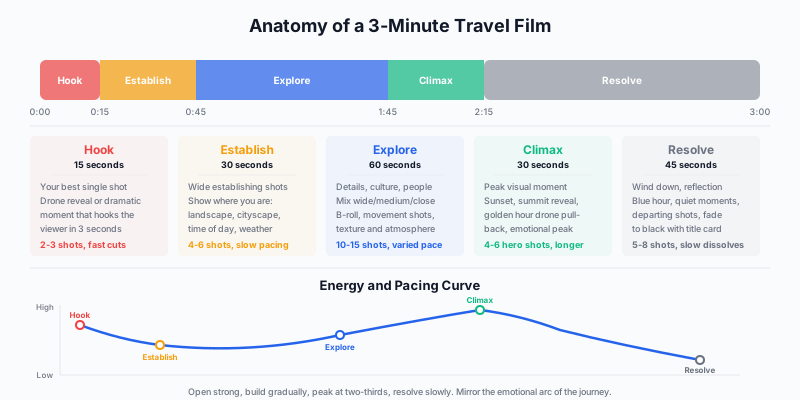
Here is a streamlined workflow designed for photographers creating 2-4 minute travel films.
Software Recommendations
DaVinci Resolve (Free): The most capable free editing software available. Its color grading tools are industry-leading. The learning curve is steeper than iMovie but shallower than Premiere Pro. For photographers who understand color, Resolve’s node-based color grading will feel more intuitive than it looks.
Final Cut Pro ($300, Mac only): Magnetic timeline makes assembly fast and intuitive. Strong stabilization tools. Excellent for photographers who want a professional tool without the subscription model of Premiere.
Adobe Premiere Pro (~$23/month): The industry standard for professional video editing. If you already subscribe to Adobe Creative Cloud for Lightroom and Photoshop, Premiere is included in the All Apps plan.
The Five-Step Assembly
- Import and rate: Watch every clip once. Mark keepers (In/Out points or favorites). Delete obvious failures. This mirrors the Lightroom cull process.
- Rough assembly: Drag your best clips onto the timeline in roughly chronological order. Do not worry about timing or transitions. Just get everything in sequence.
- Music selection: Find your music track and lay it on the timeline. The music’s tempo and emotional arc will drive your edit pacing. Epidemic Sound, Artlist, and Musicbed are the three serious licensing platforms for travel filmmakers.
- Fine cut: Trim clips to match the music’s beat and emotional flow. Remove everything that does not serve the story. A 3-minute film uses 25-35 clips from hundreds of captured shots. Be ruthless.
- Color grade and export: Apply a base correction (white balance, exposure) to all clips, then a creative grade (color temperature, contrast curve, saturation) for mood. Export at H.265/HEVC for the best quality-to-size ratio, or ProRes 422 if you need archival quality.
Color Grading Video: LOG Profiles and LUTs Explained
If you shoot RAW stills, you already understand the concept of a flat, data-rich capture that you develop in post. LOG video profiles are the motion equivalent.
LOG profiles (S-Log on Sony, C-Log on Canon, N-Log on Nikon, D-Log on DJI) capture a wider dynamic range by distributing tonal information more evenly across the histogram. The footage looks flat and desaturated straight out of camera, exactly like an unprocessed RAW file.
Why Shoot LOG
- More dynamic range: 2-3 extra stops of highlight and shadow recovery compared to standard profiles.
- Better color grading flexibility: More data to work with means cleaner color shifts in post.
- Matching multiple cameras: If you shoot on a Sony body and a DJI drone, LOG footage from both can be graded to match. Standard profiles from different manufacturers look noticeably different.
LUTs: The Starting Point, Not the Finish Line
A LUT (Lookup Table) is a mathematical transform that maps input colors to output colors. A “creative LUT” takes LOG footage and applies a specific color grade in one click. Think of it as a preset for video.
LUTs are useful starting points, but applying a LUT and calling your grade done is like applying a Lightroom preset without adjusting a single slider. Use LUTs as a base, then refine exposure, contrast, saturation, and color balance manually.
The essential LUT workflow:
1. Apply a technical LUT (Rec.709 conversion) to transform LOG footage to standard color space.
2. Correct exposure, white balance, and contrast per clip.
3. Apply a creative LUT for your desired mood (warm teal, cool desaturated, high contrast filmic).
4. Fine-tune saturation, hue vs. hue curves, and shadows/highlights.
DaVinci Resolve handles this workflow more elegantly than any other editor, with its node-based color grading allowing each step to live on a separate node that can be toggled independently.
The Hybrid Kit: What to Pack When Shooting Both Stills and Video
The practical reality of hybrid shooting is weight. Every video-specific item you add (gimbal, microphone, ND filters, extra batteries for power-hungry video recording) competes for space and weight allowance with your still photography gear.
Here is the hybrid kit that balances both disciplines without exceeding a reasonable carry-on bag:
Camera Body
Prioritize a body with strong IBIS, 4K 60fps capability, and a LOG profile. The Sony A7 IV, Nikon Z6 III, Canon R6 III, and Panasonic S5 IIX all deliver professional results in both stills and video.
Lenses (Carry Three Maximum)
| Lens |
Still Use |
Video Use |
| 24-70mm f/2.8 |
Workhorse landscape to portrait |
Primary video lens, wide enough for interiors, long enough for details |
| 16-35mm f/4 or f/2.8 |
Ultra-wide landscapes, architecture |
Gimbal-mounted establishing shots, interiors, drone-scale perspectives from ground level |
| 70-200mm f/4 |
Compressed landscapes, wildlife |
B-roll details, street scenes from distance, compression for parallax shots |
Video-Specific Additions
| Item |
Weight |
Purpose |
| Variable ND filter (77mm or 82mm) |
50g |
180-degree rule compliance in daylight |
| DJI RS 4 gimbal |
1,100g |
Stabilized movement shots |
| Rode Wireless GO II |
92g (2 TX + RX) |
Clean audio capture |
| 2x extra camera batteries |
160g |
Video drains batteries 3-4x faster than stills |
| DJI drone + 3 batteries |
~1,200g |
Aerial video and stills |
| Drone ND filter set (4 filters) |
30g |
180-degree rule for aerial video |
Total Added Weight for Video Capability
Roughly 2.6 kg (5.7 lbs) on top of your still photography kit. This is the cost of hybrid shooting. The gimbal is the heaviest single item; if weight is critical, IBIS-only handheld shooting with the ninja walk technique is a viable alternative that eliminates 1.1 kg.
Exercises: Build Your Video Vocabulary
Exercise 1: The Five-Movement Drill
With your gimbal or handheld with IBIS, shoot one clean example of each of the five essential movements (pan, tilt, dolly, truck, pedestal) in a single location. Each shot should be 8-12 seconds long. Review the footage and grade each shot honestly: is the movement smooth? Does it start and end cleanly? Is the speed appropriate? Reshoot until all five are clean.
Exercise 2: The 60-Second Film
Using only clips shot in one hour at a single location, edit a 60-second film with music. Constraint is the point: you must learn to see video opportunities quickly and edit ruthlessly. Use at least three different camera movements and include one slow-motion shot (60 fps played at 24 fps).
Exercise 3: The Audio Walk
Walk through a market, a park, or a busy street with your wireless microphone recording continuously. Record ten minutes of ambient sound. At home, listen with headphones and identify sounds you did not notice while recording. This trains your ears to hear the way you have trained your eyes to see.
Exercise 4: The LOG Grade Challenge
Shoot 5 minutes of LOG footage in a single location across varying light conditions (sun, shade, interior). In DaVinci Resolve, apply a Rec.709 base LUT, then grade all clips to match in color temperature, exposure, and saturation. The goal is consistency across clips, the foundation of a professional-looking film.
Exercise 5: The Hybrid Shoot
Spend a full day shooting a location with the explicit goal of producing both a 10-image photo portfolio and a 2-minute video from the same outing. Observe how your shooting rhythm changes when you are serving both mediums. Identify moments that worked better as stills and moments that demanded motion. This exercise builds the hybrid mindset that lets you instinctively recognize which tool serves each moment best.
Conclusion
The gap between photography and videography is smaller than it appears from the photography side. You already possess the hardest skills: seeing light, composing frames, and understanding exposure. What video adds is time, movement, and sound, three dimensions that transform a single decisive moment into an immersive experience.
The 180-degree shutter rule will feel restrictive at first. The gimbal will feel awkward. The editing timeline will feel foreign. Give it three serious shoots. By the third, the shutter rule will be automatic, the gimbal will feel like an extension of your body, and the timeline will start to make the same intuitive sense that the Lightroom Develop module does now.
Photographers who add cinematic video to their practice do not abandon stills. They expand their vocabulary. A photograph freezes a moment; a film unfolds one. Both are acts of attention, discipline, and craft. The tools are different. The eye is the same.